TimeClick’s Geo tools make time tracking more reliable for remote teams, field crews, and hybrid workplaces.
- Geo Location shows where employees clock in and out — so you always know the punch came from the right place.
- Geo Fencing lets you set approved work zones on the map, blocking punches that happen outside of them.
Here’s a quick look at how each one works and how to get them set up.

If you’re just here to set up the mobile app, check out our quick-start guide instead. How to Set Up TimeClick Mobile
What Is Geo Location?

Geo Location automatically logs the GPS location every time someone clocks in or out using the TimeClick Mobile app. It’s a simple way to see where your team is clocking in from - whether they’re in the office, on-site, or working remotely.
Why Use It?
- See where each clock in and out happens
- Build trust and accountability without hovering over your team
- Perfect for field crews, hybrid teams, and remote employees
How It Works
- Each mobile punch automatically records GPS coordinates
- Admins can review all locations in TimeClick Desktop → Report Center → Location Viewer
- Employees just need to enable location access on their device

TIMECLICK TIP
If Geo Location is required, employees won’t be able to clock in or out unless their device allows location access.

What Is Geo Fencing?
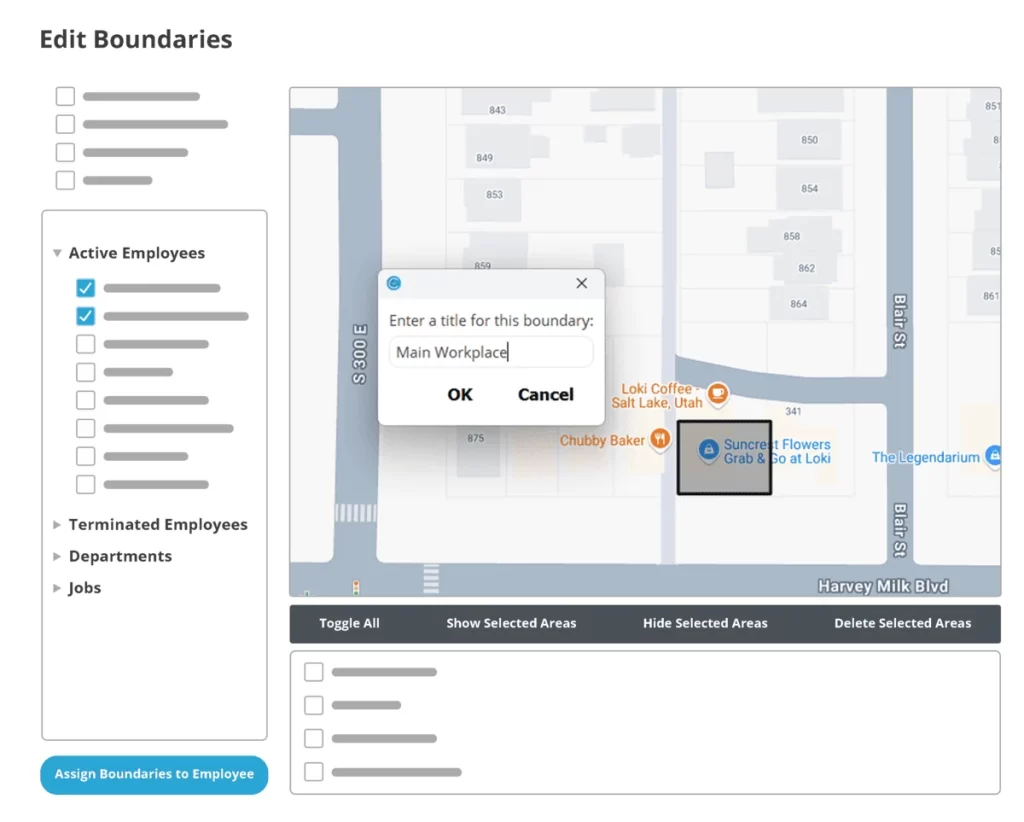
Geo Fencing lets you set custom boundaries on a map so employees can only clock in when they’re inside approved areas. It’s an easy way to make sure punches happen where they should — no guessing, no gray areas.
Why Use It?
- Stop clock-ins from outside approved zones
- Keep punches accurate and tied to real work locations
- Ideal for offices, warehouses, and job sites
How It Works
- Go to TimeClick Desktop → Admin Mode → Employees → Edit Boundaries
- Draw your Geo Fence and assign it to the right employees
- Once set, they can only clock in or out when they’re within that zone
TIMECLICK TIP
Geo Fencing is accurate down to a few feet. Be sure to include nearby areas like parking lots so employees can still clock in from there if needed.
How to Set Up Geo Features
-
Turn On TimeClick Mobile
- In TimeClick Desktop, go to Admin Mode → Preferences → Mobile
- Check “Enable Mobile Features” and click Save
- If mobile features are already on, move to the next step
-
Enable Geo Location
- Go to Admin Mode → Employees → Edit Employee Record → Restrictions
- Check “Require Location for Mobile Clock Actions”
- Click OK to save
Once it’s turned on, every mobile punch will include GPS coordinates. You can view them anytime in Report Center → Location Viewer by selecting the employee and date range.

TIMECLICK TIP
If an employee’s GPS permissions are off, the app will stop them from clocking in or out until they turn it back on.
-
Create Geo Fences
- Go to Admin Mode → Employees → Edit Boundaries
- Use the border tool to draw your fence on the map
- Select employees and click “Assign Boundaries to Employees”
You can make as many Geo Fences as you need - there’s no limit.
TIMECLICK TIP
Once a Geo Fence is in place, the app will check location access automatically. If someone’s outside the zone, they’ll see an error and won’t be able to clock in or out until they’re back inside the boundary.
Frequently Asked Questions
Here are some of the most common questions about TimeClick’s Geo Location and Geo Fencing tools.
Do employees always need to share their location?
Only if Geo features are turned on. If they’re off, TimeClick won’t ask for location data.
Can I create more than one Geo Fence?
Yes - you can create as many zones as your team needs. There’s no limit.
Are Geo features free?
They’re free for a limited time after TC 25’s release. After that, there’ll be a small annual fee.
What happens if someone is outside the fence?
The app will notify them and block the clock-in until they’re back inside the approved area.
Do I need Geo features to use TimeClick Mobile?
No - Geo features are completely optional. You can use the mobile app without them.
Can I see live GPS tracking?
No. TimeClick only records a location when someone clocks in or out. It doesn’t track ongoing movement or use GPS outside the app.
Does it record punches from the desktop app?
No - Geo features only apply when employees clock in or out using the mobile app.
What You’ll Need
- An active TimeClick Unlimited annual subscription
- A license that supports multiple devices, including mobile users
Need help setting up the mobile app? Check out our step-by-step guide → How to Set Up TimeClick Mobile.
Final Thoughts
Geo Location and Geo Fencing make time tracking more accurate without adding complexity. Whether you manage remote crews or just want better control over where punches happen, these tools make it simple.
Have questions or run into an issue setting things up? Email us at support@timeclick.com - we get back fast.
Ready to try Geo Location, Geo Fencing, and everything TimeClick has to offer?
Start your FREE TimeClick Trial Today.