If you run payroll through Gusto and track hours in TimeClick 25, good news – sending your employee hours to Gusto just got a whole lot easier.
Our new Gusto Payroll Report lets you export your team’s time directly from TimeClick in Gusto’s preferred format. No integrations, no plug-ins, no manual typing – just a quick, clean file ready to upload.
Here’s how it works, step by step.
Step 1: Open the Gusto Payroll Report in TimeClick
- Open TimeClick and sign in as an admin.
- Head to the Reports tab.
- Scroll down to the Payroll Reports section.
- Under Payroll Provider, choose Gusto.
Step 2: Choose Your Pay Period and Employees
Just like other reports in TimeClick:
- Select the start and end dates for your pay period.
- Pick which employees to include – all or just a few.
- Then continue to Map Hours.

Step 3: Map Hours
You’ll see TimeClick’s default hour types – like Regular, Overtime, and PTO.
If your Gusto setup uses slightly different names (like “Time Off” instead of “PTO”), you can adjust them here to match.
TIMECLICK TIP
Gusto’s import tool is pretty smart. It usually recognizes TimeClick’s default hour types automatically. Unless your setup is unique, you can leave the fields blank and move on.
Once you’ve reviewed your mappings, click View Report. Save the file as a CSV, pick an easy-to-find folder, and open it to make sure everything looks right.
Optional: Use Gusto IDs
Each employee can also have a Gusto ID to make sure the hours match the right person – useful if you have people with similar names.
To add Gusto IDs:
- Go to Admin Mode in TimeClick.
- Click Employees and pick one.
- Click Edit Employee Record, turn on Edit Employee Info, and
- Enter the Gusto ID in the Payroll Software ID field.
This step is optional – Gusto usually matches by name without a problem.
Once everything checks out, you’re ready to upload your report.
Step 4: Upload the Report to Gusto
- Log in to your Gusto account.
-
Go to Pay and click Run Payroll (or Pay Contractors if that applies).
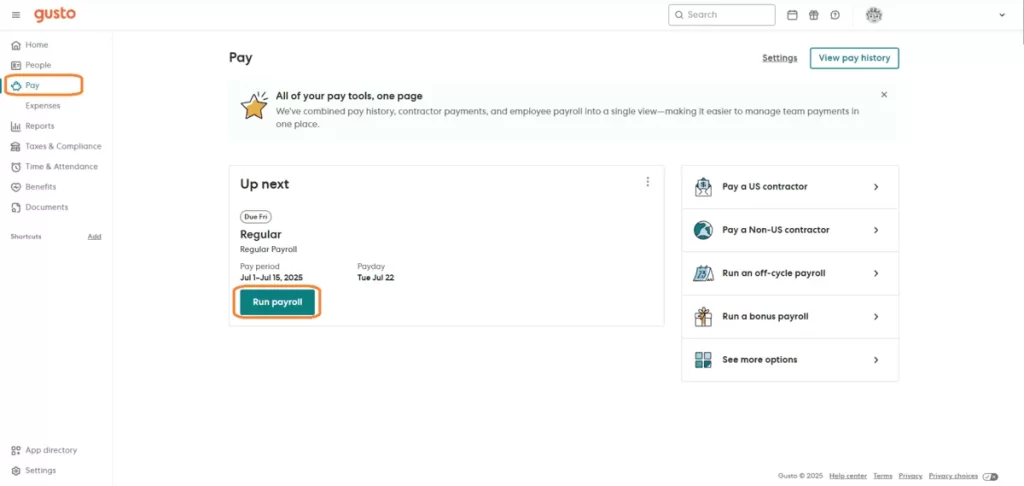
- Click Import payroll data in the top right.
-
Upload the CSV you saved from TimeClick.
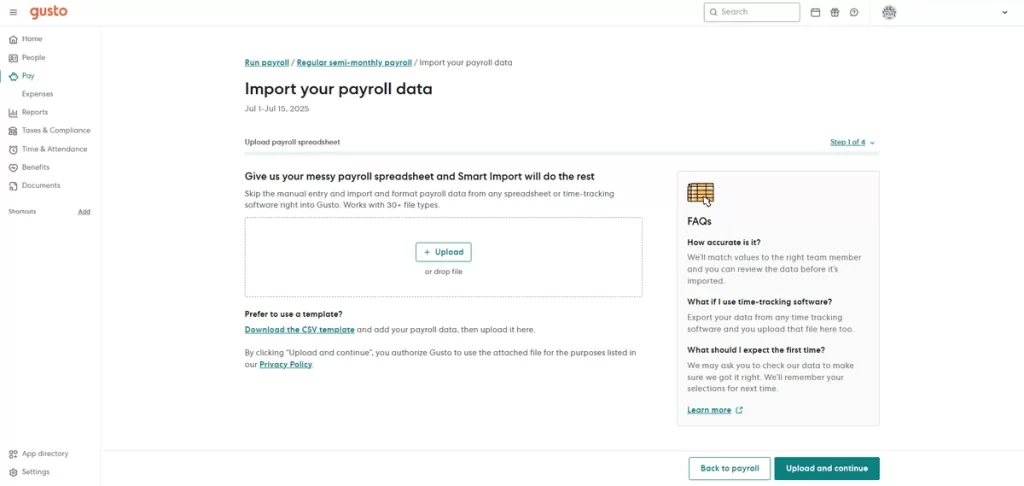
Gusto will automatically read the file and walk you through a few quick steps:
- Matching employees from your file to your Gusto account
- Matching hour types (like Vacation in TimeClick to Time Off in Gusto)
Most of the time, it all matches perfectly. Just double-check and finish the import.
What If Something Doesn’t Match?
Gusto keeps things pretty smooth, but if something doesn’t line up, try these quick checks:
- Make sure your pay period dates are correct
- Double-check that employee names or IDs match in both systems
- Confirm that hour types like PTO, Vacation, and Sick match Gusto’s labels
Still having trouble? Send an email to support@timeclick.com with:
- Your company name
- Confirmation that you’re using Gusto
- A sample file you normally upload (CSV, Excel, or PDF)
Our support team will take a look and help you get things sorted quickly.
TIMECLICK TIP
TimeClick isn’t affiliated with Gusto and can’t offer tech support for their platform. Our Gusto Payroll Report just follows their recommended format to make your payroll easier.
While we don’t assist with running payroll directly, we’re happy to help you generate the right reports or export your time data from TimeClick.
Don’t See Your Payroll Software Listed?
We’re always adding more payroll-ready reports. If you use something besides Gusto, ADP, or QuickBooks, we’d love to hear from you.
Just email support@timeclick.com with:
- Your company name
- The payroll software you use
- A sample file (CSV, Excel, or PDF) that you typically upload
If your provider is compatible, we’ll look into adding support for it in a future update.
Final Thoughts
Gusto and TimeClick now work together better than ever. You get accurate time tracking, a quick export, and an easy upload – saving you time and effort every pay period.
Haven’t tried TimeClick yet? Start your FREE 14-day trial and see how easy payroll exports to Gusto can be.
Start your FREE TimeClick Trial Today.