When you open TimeClick, the Dashboard gives you a clear snapshot of your workplace, including total hours worked, overtime, punctuality, and estimated payroll.
It helps you catch trends early, like rising overtime or payroll costs, without sorting through detailed reports.
The Dashboard also includes built-in messaging, giving you an easy way to manage communication right alongside time tracking.
Let’s walk through how to make the most of the Dashboard in TimeClick, starting with messaging.
Messages
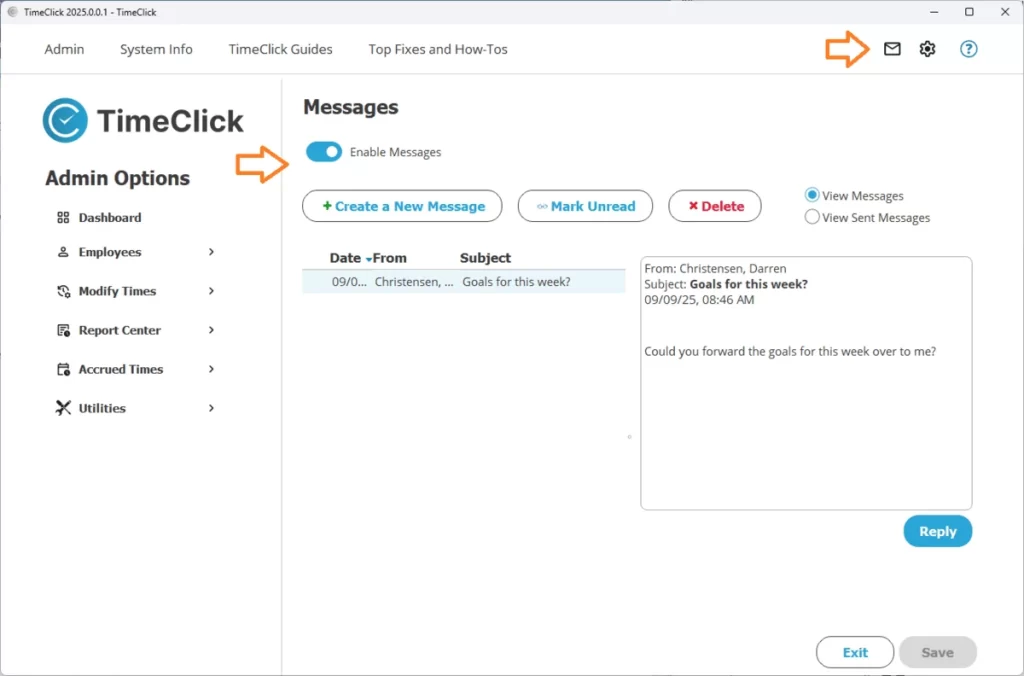
Messaging in TimeClick makes it simple to stay connected. You can send quick notes, respond to requests, or flag something as urgent - all from one place that both employees and admins can access.
In TimeClick 21, messages appeared directly inside the Dashboard. In TimeClick 25, they’ve been moved to their own toolbar icon for easier access and better organization.
What You Can Do with Messages
- Send quick notes to individual employees or your entire staff.
- Allow employees to reply or start new messages from the Employee Options menu.
- Handle PTO requests, Missed Time Requests, and general messages all in one place.
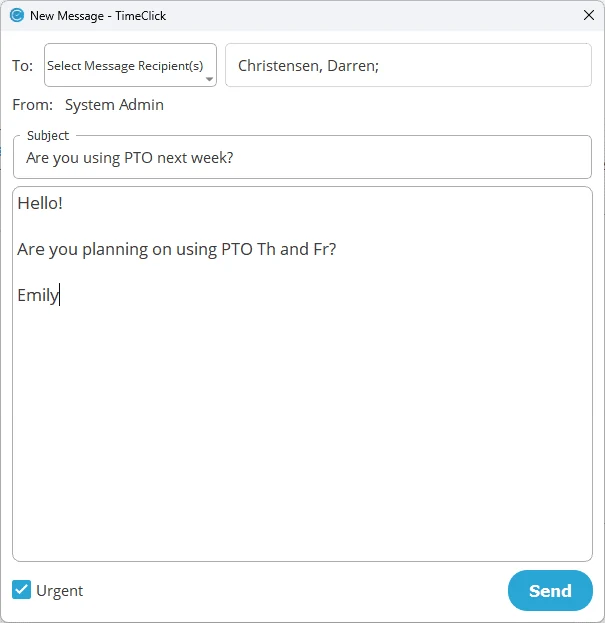
- Mark messages as Urgent so they appear immediately when employees log in.
TIMECLICK TIP
You have full control over how messaging works in your system. Here are two helpful options:
- Limit messaging between employees by going to Admin Mode → Employees → Edit Employee → Restrictions.
- If you don’t plan to use messaging, turn it off under Admin Mode → Messages → Enable Messages.

Dashboard Reports
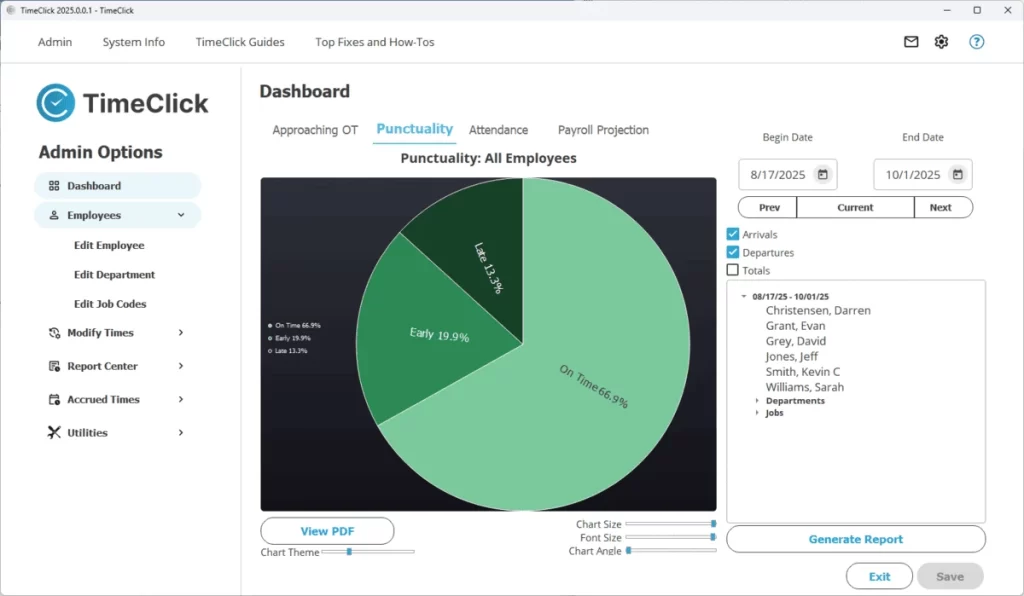
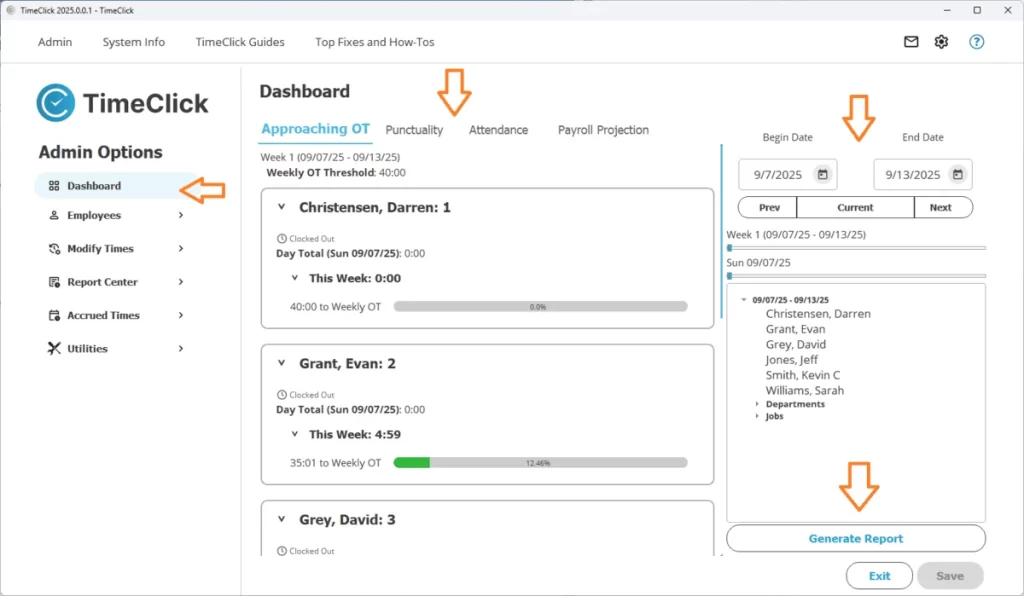
The Dashboard gives you quick access to four reports that provide a fast snapshot of your workplace without needing to open the full Report Center.
- Overtime Report - See who is close to earning overtime or how much overtime they already have.
- Punctuality Report - Check whether employees are arriving on time.
- Attendance Report - Get a quick view of who is clocking in consistently.
- Payroll Projection Report - Estimate payroll costs based on current hours and pay rates.
A Little Setup First
Before these reports can display accurate information, a few settings need to be configured:
- Overtime Report: Create overtime rules in Settings (called Preferences in TC 21) → Pay Period & OT.
- Punctuality and Attendance Reports: Add a basic schedule in Employees → Edit Employee → Clock Schedule.
TIMECLICK TIP
TimeClick is not full scheduling software. Just enter simple in/out times so the system can track punctuality.
- Payroll Projection Report: Enter pay rate details in Employees → Edit Employee → Detailed Info → Payroll Info.
Using Reports
Once setup is complete, Dashboard reports are easy to use:
- Select your desired date range and adjust filters to display the exact data you need.
- Print or save reports as a PDF for quick sharing. The only exception is the Overtime Report, which is view-only.
- For more detailed reporting, visit the full Report Center.
When People Use Dashboard Reports Most
Here are some of the most common ways businesses use these reports:
- Monitoring weekly overtime to prevent budget overages.
- Running quick payroll projections before generating full reports.
Think of the Dashboard as your at-a-glance space for everyday insights. When you need deeper reporting, the Report Center provides full detail and flexibility.
