Welcome to the Modify Times module in TimeClick, your workspace for editing, adding, and adjusting employee time records.
This is where you can fix missed punches, enter holidays for your team, or correct any time errors that appear in reports. Whether you are making a small edit or updating a full day, this module helps you keep employee hours accurate and payroll running smoothly.
Getting Started
When you open the Modify Times module, you’ll see three main options:
- Modify Times - Edit or add time entries for one employee at a time.
- Add Mass Entry - Add the same entry for multiple employees at once.
- Edit Mass Entry - Review or delete past mass entries.
Most of the time you’ll use Modify Times since it handles individual edits and quick corrections.
- Select an employee from the list.
- Click Modify Employee’s Times to open their record.

Modify Times
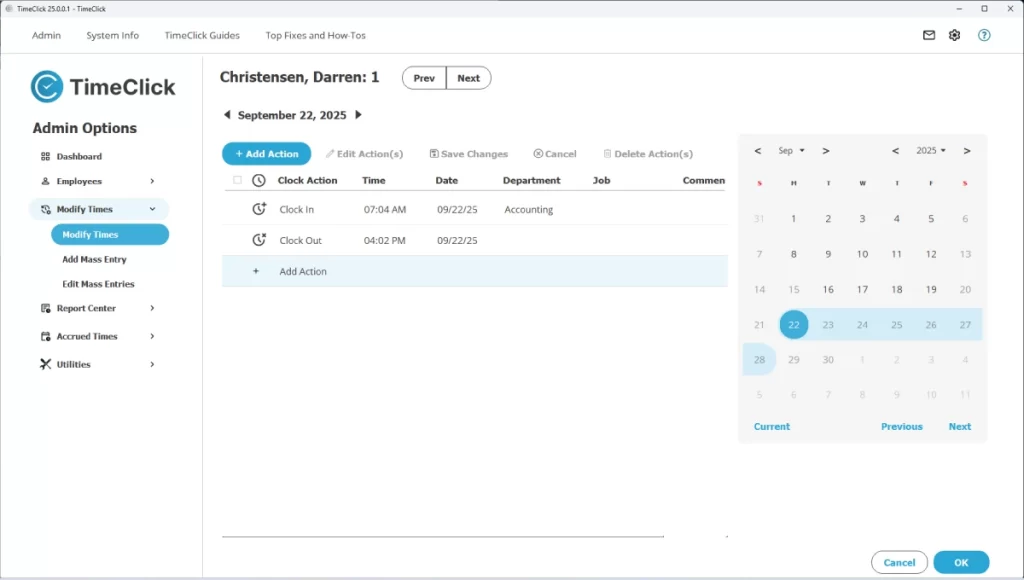
The place to review daily punches and make quick fixes.
When you open an employee’s record, you’ll see their actions for one day at a time, listed in the order they happened. By default, TimeClick opens to the current day.
You might see something like:
- Clock In - 8:00 AM
- Clock Out - 5:00 PM
- PTO - 2 hours
Or a day with breaks:
- Clock In - 8:00 AM
- Start Break - 10:00 AM
- End Break - 10:30 AM
- Clock Out - 5:00 PM
Each row represents an Action that can be edited, such as clock ins, clock outs, breaks, PTO, vacation, or holidays.
Buttons at the Top
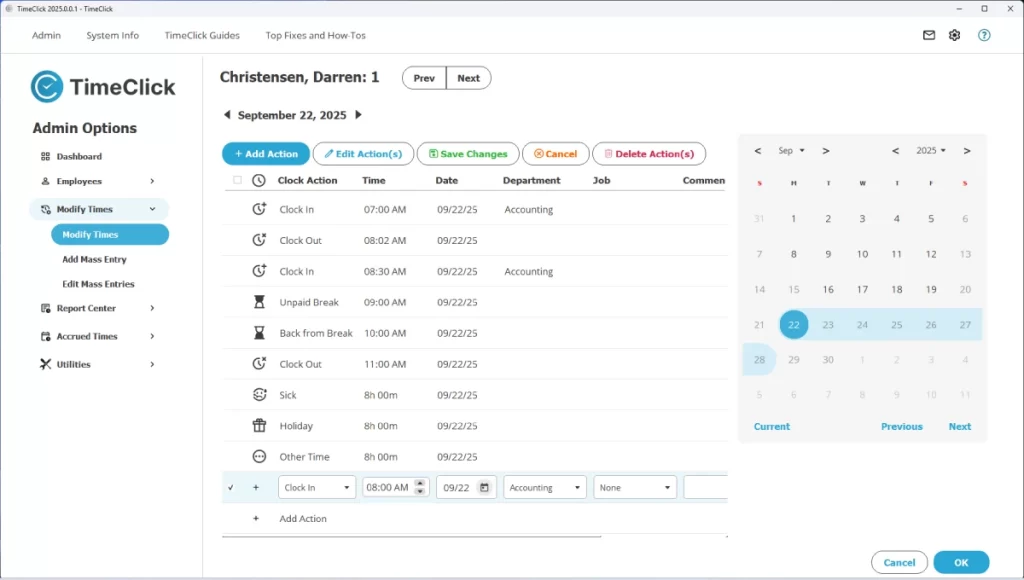
These are your main tools for managing entries.
- Add Action - Create a new time entry.
- Edit Action - Select an existing entry and change it.
- Save Changes - Save any modifications, additions, or deletions.
- Cancel - Clear your current selection.
- Delete Action - Permanently remove selected entries.
- OK (bottom right) - Saves your work and returns you to the main Modify Times screen.
Improvements in TimeClick 25
What’s new in this version.
- Add, customize, and delete multiple entries at once.
- Older versions like TC 21 allowed editing one action at a time only.
Calendar Navigation
The calendar helps you review activity at a glance.
- Light Blue - The pay period you are currently viewing.
- Dark Blue - The specific day selected.
- Bold Font - The day has time entries.
- Normal Font - The day has no entries.
- Red Font - The day contains an error.
Common Errors
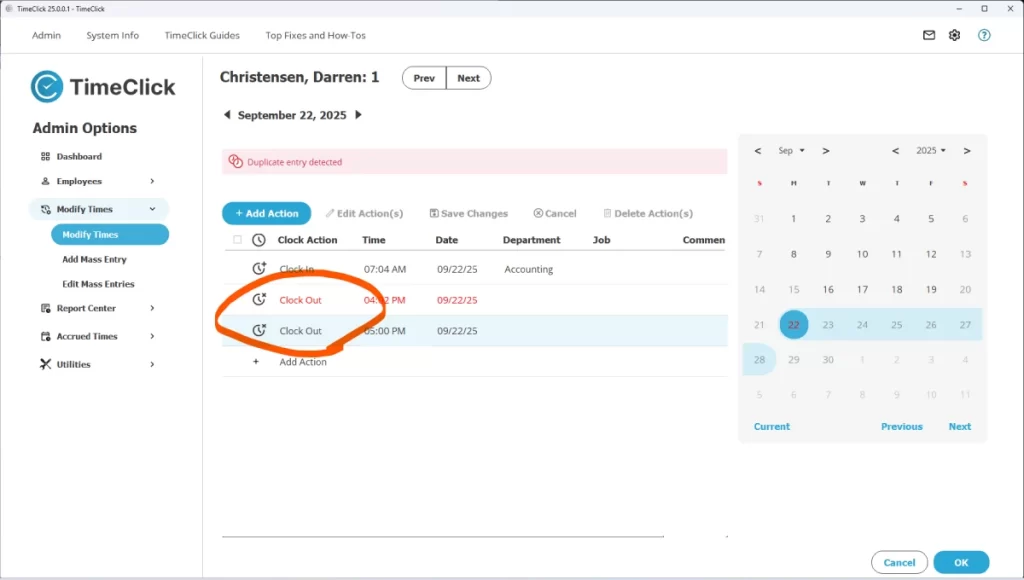
These are easy to fix once you know what they mean.
- Missing Clock In - A clock out exists without a clock in.
- Missing Clock Out - A clock in exists without a clock out.
- Duplicate Entry - Two identical actions (for example, two clock ins) appear in a row.
TimeClick also flags sequences such as a clock out at 8 AM followed by a clock in at 5 PM. These are reversed - the day should always begin with a clock in unless midnight shifts are enabled.
Other Notes
TimeClick is not a scheduling tool, so it cannot tell if a punch is “wrong.” It simply checks that the sequence of actions makes logical sense, such as Clock In → Clock Out → Clock In → Clock Out, and so on.
TIMECLICK TIP
If employees forget to clock in or out, they will be prompted to submit a Missed Time Action Request.
These appear in your messages for approval and give employees a way to correct their own time records.
Midnight Shifts
For employees who work overnight.
If you have employees who work overnight, you may see errors until their schedule is set up correctly.
The fix is simple. Adjust their Day Cutoff setting in Employees → Edit Employee Record → Clock Schedule (scroll to the bottom in TC 25).
By default, a new day in TimeClick begins at 12 AM. For example:
- September 23 - Clock In, 11 PM
- September 24 - Clock Out, 7 AM
These entries are treated as two separate days by default. TimeClick will not flag this as an error since the sequence is valid, but your pay period or overtime totals may not align correctly.
Adjusting the Day Cutoff (for example, 10 AM to 10 AM) ensures that overnight shifts are grouped together as one workday.
For detailed steps, check out our Midnight Shifts Guide.
Add Mass Entry
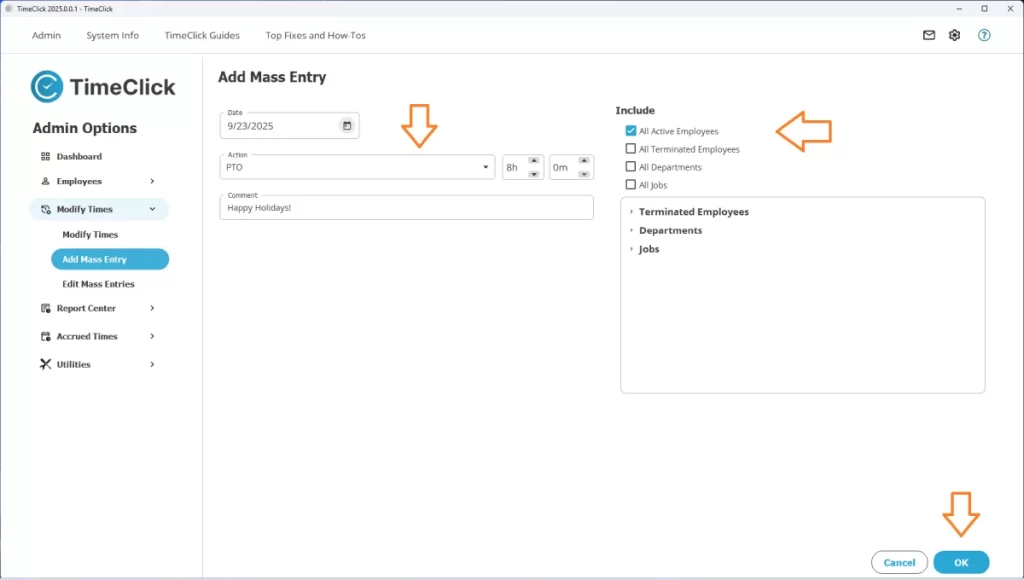
Perfect for holidays, PTO, and company-wide updates.
The Add Mass Entry feature saves time by letting you create the same entry for multiple employees at once. It’s especially useful when you need to record a shared event, such as:
- Adding 8 hours of holiday time.
- Giving everyone PTO on the same day.
Here’s how to do it:
- Click Add Mass Entry.
- Select the date and type of action (Clock In, Clock Out, PTO, Holiday).
- Enter the time or duration (for example, 12:05 PM or 8 hours PTO).
- Add department, job, or comments if needed.
- Use the filters on the right to select who will receive the entry.
- Click Create to confirm.
TIMECLICK TIP
In older versions of TimeClick (21 and earlier), avoid using special characters in comments (like “Happy Holidays!”) to prevent formatting errors.
Edit Mass Entry
Need to correct or remove a mass entry? It’s easy.
Click Edit Mass Entry to view your history of previous entries.
- Delete an incorrect mass entry to automatically undo it.
- Create a new one if you need to reapply or adjust it.
Audit Trail
Need to see who made changes and when?
While the Modify Times module doesn’t include its own audit view, you can easily find this information nearby.
Go to the Utilities Module → Audit Reports and run the Modify Times History Report.
This report logs every time change - perfect for tracing edits, verifying accuracy, or reviewing actions taken by admins.
For a step-by-step walkthrough, see our Modify Times Audit Report Guide.
Wrapping Up
Keeping employee time accurate and payroll stress-free.
The Modify Times module helps you fix missed punches, apply holidays, and keep records consistent across your team. With clean data, payroll prep becomes faster, smoother, and far less error-prone.
Need more help? Visit our Support Page.
Common Questions
Can I edit multiple employees’ time at once?
Not directly - you’ll need to use the Mass Entry feature.
I’m seeing an error but everything looks normal. What should I check?
Look at the day before and after. Even if today’s sequence looks fine (Clock In → Clock Out → Clock In → Clock Out), the issue may be caused by an incomplete punch on the surrounding days.
How do I allow Restricted Admins to modify times for their employees?
Go to Employees → Edit Employee Record → Restrictions. Scroll to the bottom, enable Restricted Admin access, and toggle the option to modify times while selecting which employees they can manage.
Can I create my own custom time types?
Yes. Go to Settings (or Preferences in TC 21 and older) → Time Actions. There, you can create custom time types like “Bonus Time,” “Special Project,” or anything that fits your team’s workflow.
