This guide walks you through setting up, tracking, and managing Paid Time Off (PTO) in TimeClick - from creating categories to approving requests.
You’ll learn how to:
- Adjust or review employees’ current PTO balances
- Set up automatic accruals and earning rules
- Help employees use and request PTO
- Approve or deny PTO requests as an admin
See our State-by-State PTO Law Guide for details on PTO requirements in your area.
Note: “PTO” refers broadly to Paid Time Off - including vacation, sick leave, bereavement, or other paid leave your company offers. TimeClick uses “PTO” as an umbrella term.
Table of Contents
- Edit Employee PTO Balances
- Set Up PTO Accruals and Earnings
- Step 1: Enable Accrued Time
- Step 2: Create a New Category
- How Employees Use PTO
- How Admins Approve or Deny PTO Requests
- How to Manage PTO and Review History
- Department PTO Requests (Optional)
- Other Time Types (Non-Automatic)
- Common Questions
- Next Steps
Edit Employee PTO Balances

Before setting up how employees earn PTO, review their existing balances.
Go to Admin → Employees → Edit Employee → Accrued Time.
From here, you can:
- Adjust current PTO, Vacation, or Sick balances
- Assign or change categories
- Set maximum PTO caps (e.g., 100-hour limit)
All changes are automatically tracked for audit purposes.
TIMECLICK TIP
Set employee balances first, then define how they’ll earn PTO moving forward.
Set Up PTO Accruals and Earnings
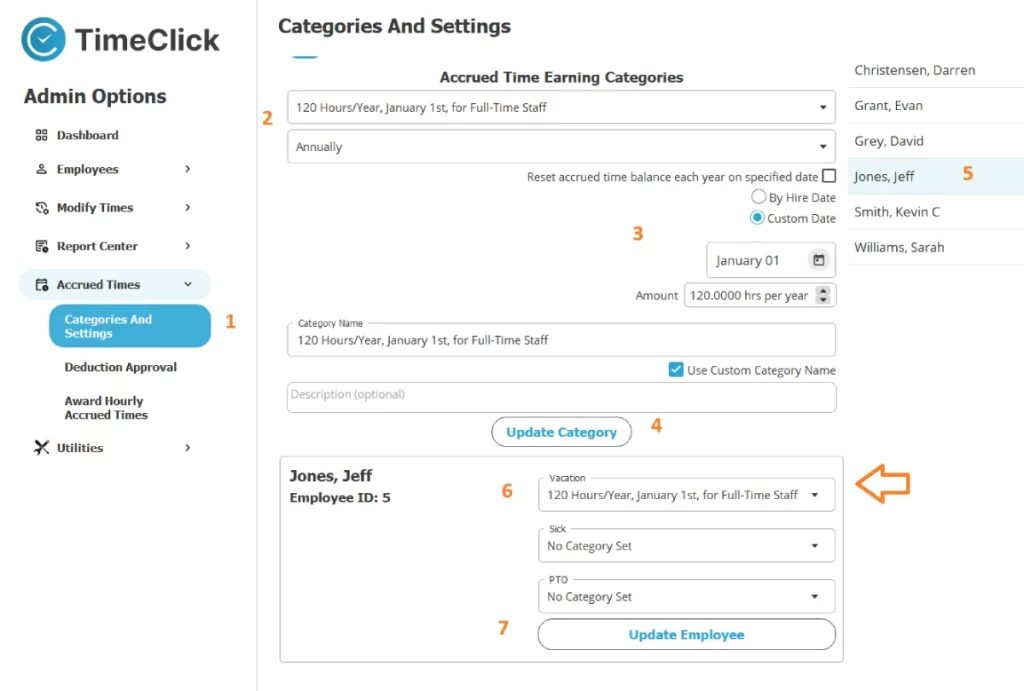
Head to Admin → Accrued Time.
This is where you define when and how employees earn PTO. It won’t affect their current balances.
Step 1: Enable Accrued Time
Toggle “Enable Accrued Time” to activate PTO tracking.
Step 2: Create a New Category
Click Select a Category → Create a New Category. You’ll see four options:
- Hourly - Earns PTO for each hour worked
- Pay Period - Earns PTO each pay period
- Monthly - Earns PTO once per month
- Annual - Earns PTO once per year
These categories define when PTO is awarded and how much is earned - not the employee’s current total.
Once you’ve created a category, assign it to an employee’s PTO, Vacation, or Sick field, then click Update Employee. PTO will begin accruing automatically.
Annual Category
Example: Employee receives 120 hours of PTO on January 1 each year.
You can:
- Choose the award date (e.g., Jan 1, hire anniversary, or custom date)
- Set total annual hours
- Enable “Reset Accrued Time Balance Each Year” if unused time shouldn’t carry over
- Add a maximum cap (e.g., 100 hours max)
Once assigned, PTO will automatically post to each employee on the selected date.
Monthly Category
Example: Employee earns 4 hours of PTO per month.
A steady, predictable schedule awarded on the 1st of each month.
Pay-Period Category
Example: Employee earns 3 hours of PTO each pay period.
Set your pay period under Settings → Pay Period & OT (called Preferences in older versions like TC 21).
Hourly Category
Example: 0.03 hours of PTO per hour worked → roughly 1 hour for every 30 worked.
Note: This category requires an extra step - you must manually award earned PTO from the Award Hourly Accrued Times tab.
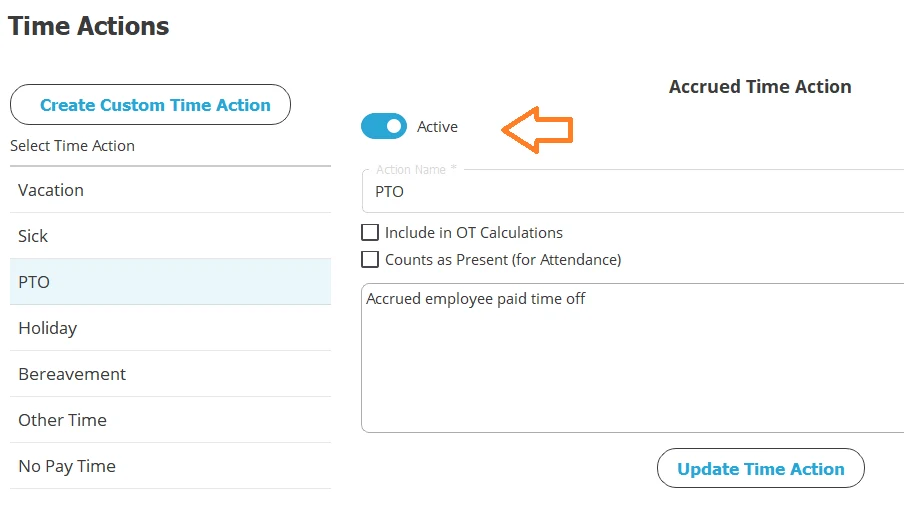
Employees earn PTO based on their total worked hours, but admins must approve and apply the earned hours manually (commonly during payroll). This helps avoid errors if time records need correction.
Award Hourly Accrued Times (for Hourly Categories)
Only relevant if you’re using Hourly accruals.
If you’re using Annual, Monthly, or Pay-Period accruals, skip this section.
This tab is used to award PTO based on hours worked.
How to Award PTO:
- Run an Hours Report in the Report Center and verify all time entries.
- Go to Award Hourly Accrued Times.
- Select your date range and click Award Hourly Accrued Times.
TimeClick will calculate and apply PTO based on hours worked for employees assigned to an Hourly category.
TIMECLICK TIP
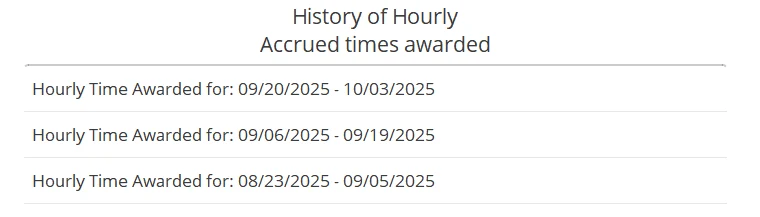
If you make a mistake, check the list of awards on the right-hand panel. Delete any incorrect award to reverse it, fix the record, and re-award.

How Employees Use PTO
Employees can use or request PTO in a few ways:
- From the clock-in screen, click Launch Employee Options → Submit Time Off Request.
- Under Employee Options → Accrued Time, view balances and PTO history.
- Admins can manually enter PTO via Modify Times.
MOBILE TIP
In TC 25, employees can view PTO balances and submit requests directly from the TimeClick mobile app.
How Admins Approve or Deny PTO Requests
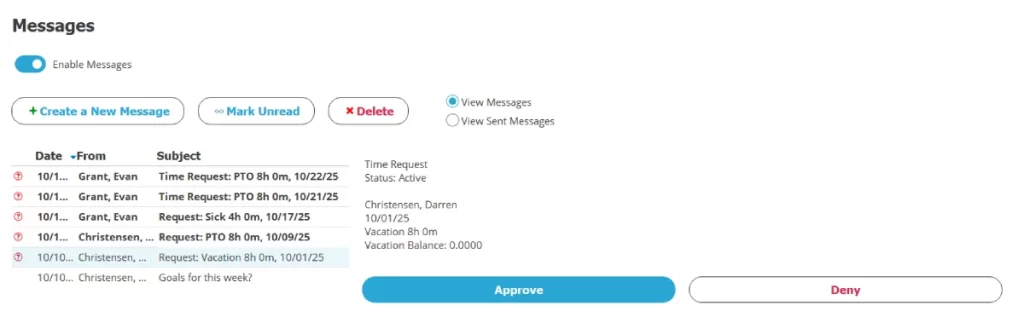
All PTO requests appear as Messages in the Admin inbox. Review, approve, or deny requests directly from this panel.
When approved, TimeClick automatically deducts the hours and adds the entry to the employee’s record.
You can also view pending or historical requests in Accrued Time → Deduction Approval.
How to Manage PTO and Review History
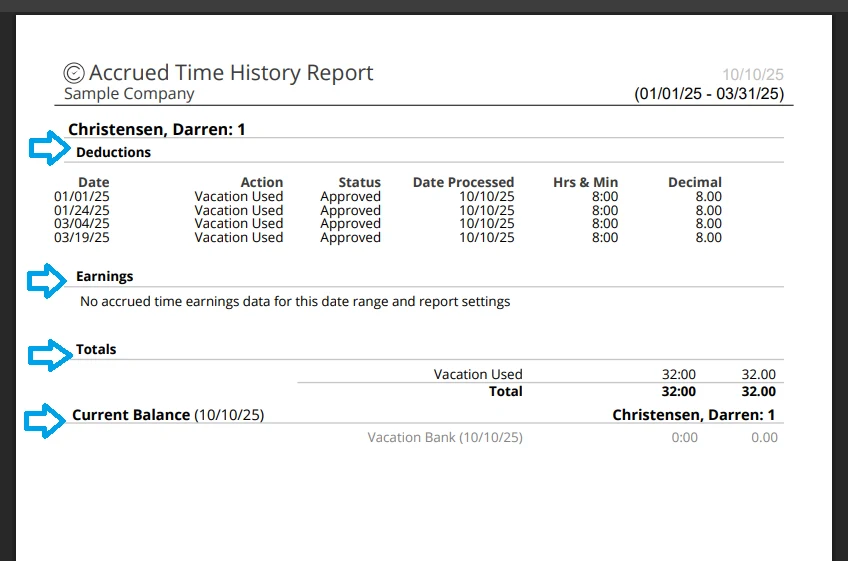
Run the Accrued Time History Report (in Report Center) to review:
- PTO earned
- PTO used
- Each employee’s current balance
This report is ideal for troubleshooting and seeing exactly how PTO balances reached their current totals.
Department PTO Requests (Optional)
If you’d like requests to route to a department head instead of the main admin:
- Go to Admin → Employees → Departments.
- Assign employees and select a Department Head.
- Set each employee’s default department under their record.
From now on, PTO requests will automatically go to the department head for approval.
Other Time Types (Non-Automatic)
Only PTO, Vacation, and Sick time can automatically accrue.
Custom time actions (like Holiday, Bereavement, Special Time) won’t accrue automatically but can be added manually through Modify Times.
If your company uses a custom label, repurpose one of the three automatic types (PTO, Vac, or Sick) to track it.
Common Questions
What’s the difference between Accrued Time and Modify Times?
Accrued Time manages earning rules and balances; Modify Times records the actual PTO usage.
How do I reset PTO balances for a new year?
Enable Reset Accrued Time Balance Each Year in your Annual category, or manually adjust balances each January.
Can I track multiple types of PTO separately?
Yes. Create separate categories for Vacation, Sick, and General PTO under Categories & Settings.
Can hourly accruals happen automatically?
No. Hourly PTO must be manually awarded in Award Hourly Accrued Times to ensure accuracy.
How do I handle carryover or policy changes mid-year?
Adjust your category’s settings or create a new one for the updated policy. TimeClick will start applying the new rule immediately. Automatic policy transitions are not yet available but may be added later.
What if my employee's PTO balance looks incorrect?
Run the Accrued Time History Report for the year-to-date to see all PTO activity. If everything looks accurate, the starting balance was likely off - adjust it manually.
Can employees approve their own PTO?
No, not by default. However, you can grant this privilege in Admin → Employees → Edit Employee → Restrictions → Allow Employee to Submit Time Actions.
How do I reset PTO balances for a new year?
Enable Reset Accrued Time Balance Each Year in your Annual category, or manually adjust balances each January.
Can I track multiple types of PTO separately?
Yes. Create separate categories for Vacation, Sick, and General PTO under Categories & Settings.
Can hourly accruals happen automatically?
No. Hourly PTO must be manually awarded in Award Hourly Accrued Times to ensure accuracy.
What if my employee's PTO balance looks incorrect?
Run the Accrued Time History Report for the year-to-date to see all PTO activity. If everything looks accurate, the starting balance was likely off - adjust it manually.
Can employees approve their own PTO?
No, not by default. However, you can grant this privilege in Admin → Employees → Edit Employee → Restrictions → Allow Employee to Submit Time Actions.
Next Steps
- Run PTO Reports: Report Center → Hours Report → Accrued Time History Report
- Set Company Pay Periods: Settings → Pay Period & OT
- Learn More: State PTO Law Guide
- Learn About Restricted Admins (Level 2): Restricted Admin Guide
