For most employees, TimeClick is all about one thing - clocking in and out. That’s it. The process is quick, simple, and takes just a few seconds.
How to Clock In or Out
- Click your name
- Type your password
- Click Clock In or Clock Out
That’s all there is to it. You’ll also see a few useful features on the main screen:
- Overtime Tracker - shows how close you are to hitting overtime (if your admin has it enabled).
- Messages Button - lets you send or receive messages with your admin or or other employees. A red dot appears when you have unread messages.
For anything beyond clocking in and out, open Launch Employee Options - that’s where you’ll find all your other tools.
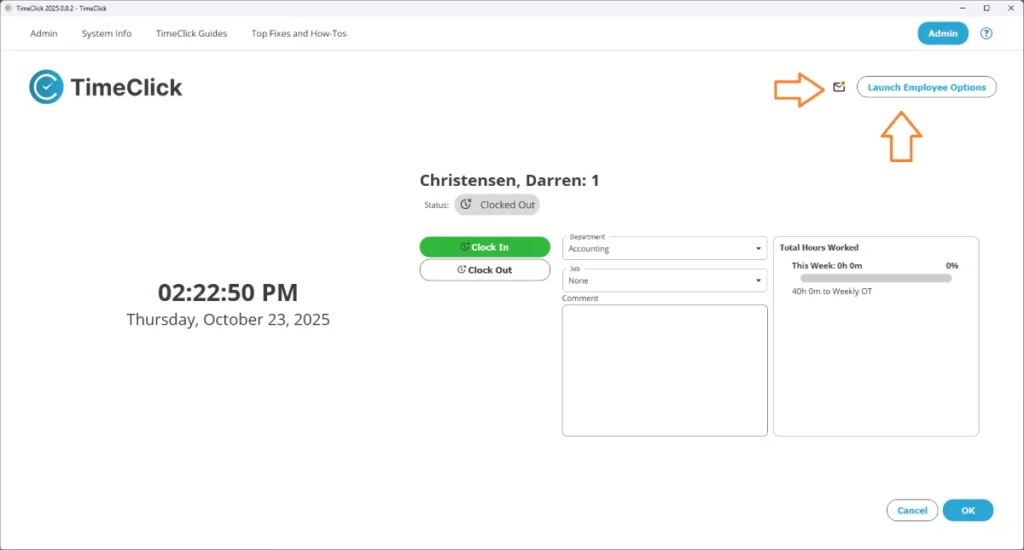
Let’s take a look at what you can do inside Employee Options and how each feature helps you manage your time more easily.
Employee Options Overview
Inside Employee Options, you can:
- Check your hours and overtime progress
- Send or receive messages
- Submit PTO or vacation requests
- Submit missed time requests
- Change your password
TIMECLICK TIP
Your admin controls which options you have access to. If something looks different, ask them - they can enable or disable features anytime.

Submitting a Missed Action
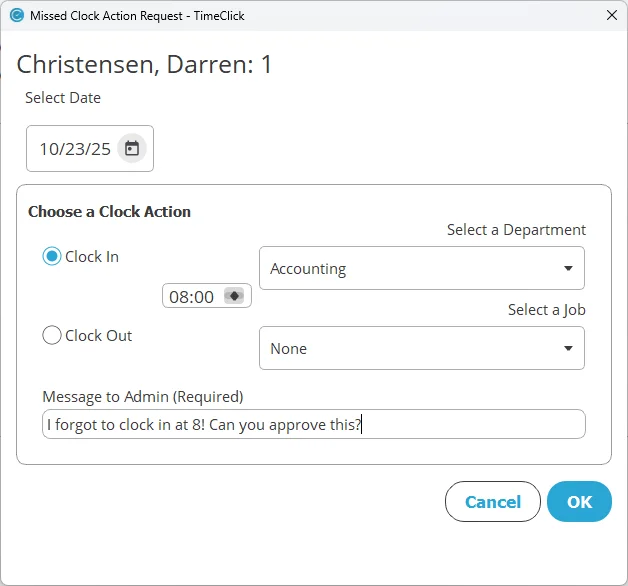
If you ever forget to clock in or out, you can fix it fast using the Submit Missed Action button.
Example
Let’s say you arrived at 8:00 AM but forgot to clock in. Select Submit Missed Action, write a quick note (“Forgot to clock in at 8 AM”), and choose the correct time. Once your admin reviews and approves it, TimeClick automatically updates your time.
It’s the fastest way to correct missed punches - no back-and-forth messages or emails needed.
Submitting Time Requests
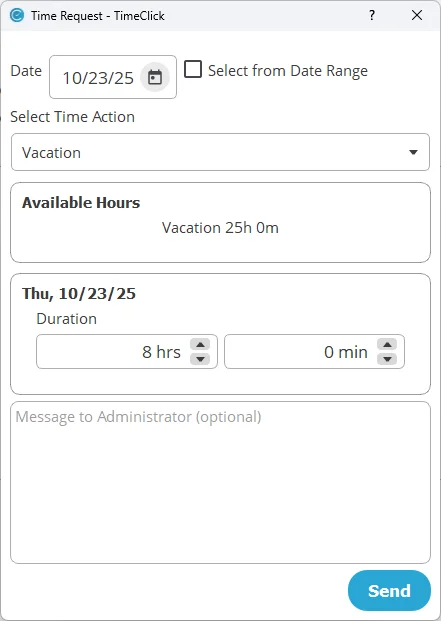
Need to request PTO, vacation, or sick time? You can do it right inside TimeClick.
- Select your time type (PTO, vacation, sick)
- Enter the number of hours
- Choose the date or date range
We've also made it so that you can:
- View your current balance right on screen
- Use Select from Date Range for multiple days
- Add comments or notes for your admin
Click Send when finished. Your admin can approve, deny, or reply with a note. Once approved, your balance updates automatically.
Messages
You can send and receive messages directly with your admin or team (if allowed). It’s a quick way to confirm hours, ask questions, or discuss schedule changes.
A red dot on the main screen means you have a new message waiting.
Dashboard & Reports
The Dashboard gives you a quick snapshot of your totals - hours worked, recent punches, and overtime progress. It’s perfect for making sure your hours look right throughout the week.
If something seems off, check with your admin or review your detailed report.
Viewing Reports

Go to the Reports tab to see your hours for:
- The current or last pay period
- Custom date ranges
- Last month or year
The Hours Report gives you a clear breakdown of your total worked time. If you want to explore reporting further, check out our Report Center guide.
TIMECLICK TIP
Admins use the same reports but can view all employees. You’ll only see your own.
View Accrued Time
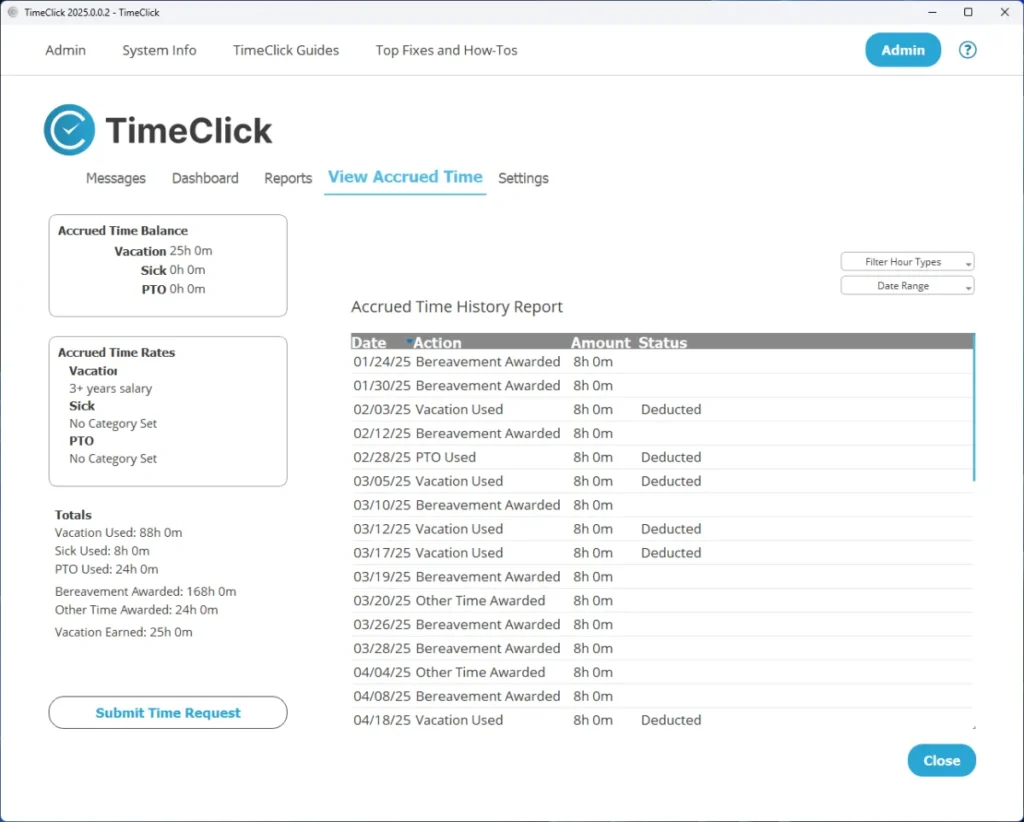
The Accrued Time tab shows your PTO, vacation, and sick balances. You can:
- See how much time you’ve earned and used
- View your accrual rate (e.g., 2 hours per pay period or 80 hours per year)
- Review your past PTO entries
You can also submit a Time Request directly from this screen. Once it’s approved, TimeClick automatically deducts it from your balance.
Settings
In Settings, you can:
- Change your password (requires your current one)
- View your schedule if your admin has added one - great for tracking punctuality and attendance
If you forget your password, your admin can reset it for you.
What Employees Can’t Do
To keep data accurate and secure, employees can’t:
- Edit or delete time entries
- Modify other users’ data
- Access Admin Mode
- Change company or pay period settings
If you notice something off - like a missed punch or incorrect hours - just send a message or use Submit Missed Action. Your admin can fix it easily.
Wrap-Up
The employee side of TimeClick is built for speed and simplicity. You can:
- Clock in and out in seconds
- View your hours and PTO
- Submit requests
- Send messages
- Change your password
Everything else - setup, approvals, and edits - stays with your admin. TimeClick keeps things easy: click, clock, done.
Curious how employee permissions work or how admins can grant limited access? Check out our guide on Restricted Admins.
