If your business runs payroll through QuickBooks Desktop, TimeClick makes it easy to export employee hours in a format that QuickBooks can read instantly.
This guide walks you through the one-time QuickBooks setup, how to export from TimeClick, and how to import your hours into QuickBooks Desktop for payroll.
Note: This process applies to QuickBooks Desktop 2015 and newer. Menu names or layouts may vary slightly, but the steps remain the same.
Let’s get started.
Table of Contents
- Step 1: One-Time Setup in QuickBooks Desktop
- Part 1.1: Enable Time Tracking in QuickBooks
- Part 1.2: Enable Time Tracking for Each Employee
- Part 1.3: Export Your Employee List (.IIF File)
- Step 2: Review Hours in TimeClick Before Running the Report
- Step 3: Run the QuickBooks Desktop Payroll Report in TimeClick
- Step 4: Map TimeClick Hours to QuickBooks Codes
- Step 5: Import the Report into QuickBooks Desktop
- Wrapping Up
- Need Help with Other Payroll Software?
Step 1: One-Time Setup in QuickBooks Desktop
Part 1.1: Enable Time Tracking in QuickBooks
- Open QuickBooks Desktop.
- Click Edit in the top toolbar, then select Preferences.
- Choose Time & Expenses from the left menu.
- Under the Company Preferences tab, set “Do you track time?” to Yes, then click OK.
Part 1.2: Enable Time Tracking for Each Employee
- Go to Employees in the top toolbar and select Employee Center.
- Double-click an employee’s name.
- Open the Payroll Info tab.
- Check the box for “Use time data to create paychecks.”
TIMECLICK TIP
You only need to do this once per employee. Repeat for any new hires later on.

Part 1.3: Export Your Employee List (.IIF File)
- Click File in the top toolbar, then go to Utilities → Export → Lists to IIF Files.
- Select Employee List and click OK.
- Save the file as
EmployeeList.IIFin an easy-to-find location, such as your Desktop.
TIMECLICK TIP
TimeClick uses this file to match employees between your TimeClick database and QuickBooks.
Upload this file each time you run payroll. Only export a new one if you’ve added or removed employees in QuickBooks.
Step 2: Review Hours in TimeClick Before Running the Report
Before exporting, review your team’s hours using the Hours Report or Summary Report. Make any corrections, confirm accuracy, and you’ll be ready for export.
Step 3: Run the QuickBooks Desktop Payroll Report in TimeClick
- Open TimeClick and enter Admin Mode.
- Go to Report Center → Payroll Reports.
- Select QuickBooks Desktop from the payroll provider dropdown.
- Choose your date range and the employees to include.
- Click Browse and upload your
EmployeeList.IIFfile.
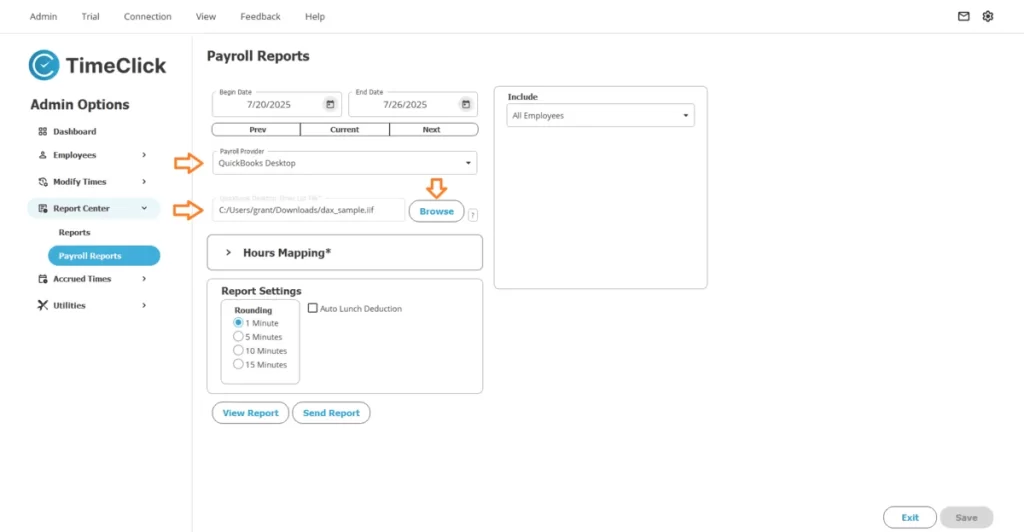
Once uploaded, TimeClick will automatically open the Hour Mapping screen.
TIMECLICK TIP
If the mapping screen doesn’t appear, the IIF file may not be formatted correctly. Try re-uploading it or re-exporting from QuickBooks following Part 1.3 above.
Step 4: Map TimeClick Hours to QuickBooks Codes
Match your TimeClick hour types to their corresponding QuickBooks codes. TimeClick shows the expected QuickBooks names to make this process straightforward.
Example mappings:
Regularin TimeClick →REGULARin QuickBooksOvertime→OVERTIMESick→SCK- And so on...
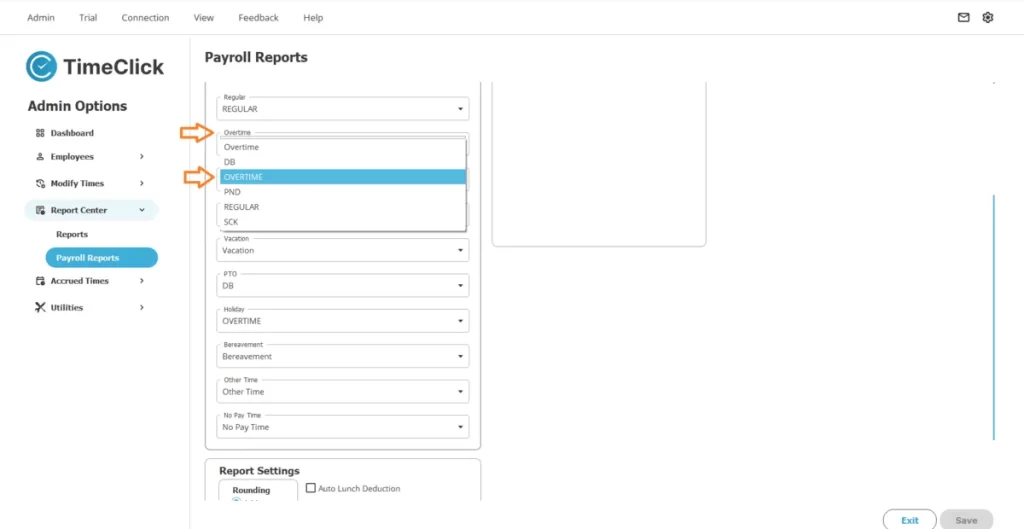
When finished, click View Report, then Save (we recommend saving to your Desktop). This creates your QuickBooks-ready .IIF file.
Step 5: Import the Report into QuickBooks Desktop
- In QuickBooks, go to File → Utilities → Import → Timer Activities.
- Select your
.IIFfile and click Open. - If you see the “QB Pro Timer Import Summary” window, the import was successful.
You can now view the imported hours or close the window and run payroll as usual.
Wrapping Up
That’s it - you’re all set! After completing the one-time setup, future exports take just minutes. Simply review your team’s hours, upload the employee list, generate your report, and import it directly into QuickBooks Desktop.
TIMECLICK TIP
TimeClick is not affiliated with or sponsored by QuickBooks. We don’t provide payroll services - we just make it easier to get your time data into QuickBooks Desktop for smooth payroll processing.
Have questions or feedback? Email support@timeclick.com with your company name and payroll software, and our support team will get back to you quickly.
Need Help with Other Payroll Software?
We also support QuickBooks Online and are adding more integrations soon. Want to request a new payroll export format? Just email support@timeclick.com with:
- Your company name
- The payroll software you use
- A sample of your export file format (
.CSV,.XLSX, or.PDF)
Make payroll easier, starting today. Start your free 14-day TimeClick trial - no credit card required.
Start your FREE TimeClick Trial Today.