If your business runs payroll using QuickBooks Online with QuickBooks Time, TimeClick 25 makes it easy to export employee hours in the format QuickBooks Online accepts for import.
While QuickBooks Online has stricter limitations than other payroll platforms, TimeClick’s dedicated report helps you get most of the work done automatically.
Here’s a quick walkthrough of how it works and what to expect when connecting your TimeClick data with QuickBooks Online.
Table of Contents
- Before You Start: Important Notes About QuickBooks Online
- Step 1: Generate the QuickBooks Online Report in TimeClick
- Step 2: Import the Report into QuickBooks Online
- What Happens Next?
- Quick Disclaimer
- A Note on Desktop vs. Online
- Want a Custom Report?
- Don’t Use QuickBooks? We’ve Got You Covered.
- Final Thoughts
Before You Start: Important Notes About QuickBooks Online
QuickBooks Online requires QuickBooks Time to be turned on and fully set up in your account - even if you don’t use it to track hours.
Here are a few things to keep in mind before you start:
- Only total hours can be imported. QuickBooks Online doesn’t accept specific time types like Overtime, PTO, or Sick.
- If you want to separate Regular, Overtime, or Vacation hours, you’ll need to edit them manually once they’re in QuickBooks.
- You can still group hours by department or job if that helps your setup.
- QuickBooks Time requires a paid subscription, even if you’re not actively using it.
QuickBooks Desktop generally handles time imports from tools like TimeClick more smoothly, but if you’re using QuickBooks Online, here’s how to make it work.

Step 1: Generate the QuickBooks Online Report in TimeClick
- Open TimeClick and log in as an admin.
- Go to the Reports tab.
- Find the Payroll Reports section.
- Under Payroll Provider, select QuickBooks Online.
- Choose your pay period and employees, then click View Report.
- Save the report as a
.CSVfile to your computer.
Step 2: Import the Report into QuickBooks Online
- Sign in to your QuickBooks Online account.
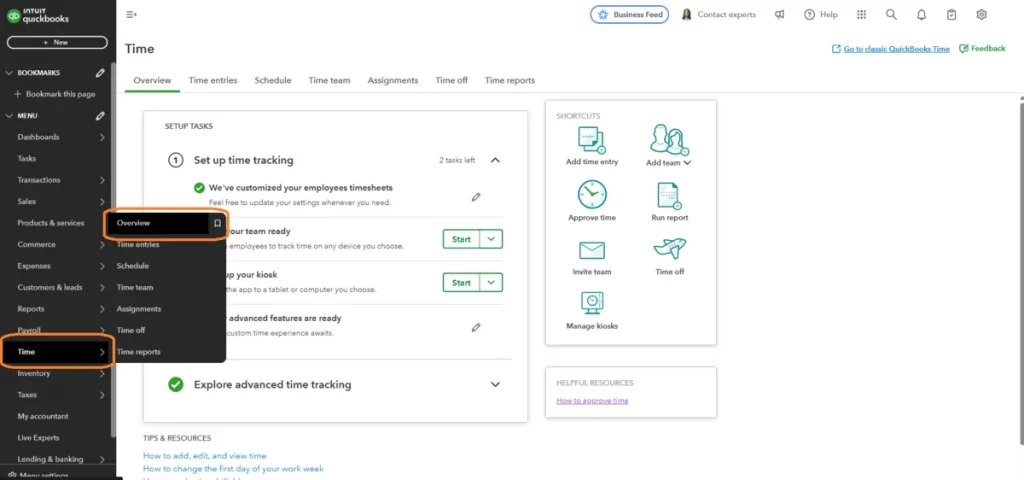
- Go to Time → Overview.
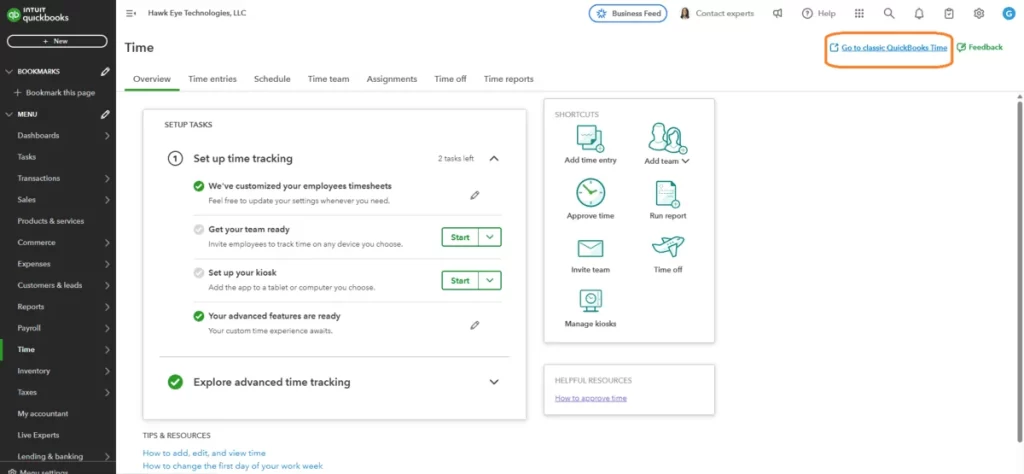
- Click Go to Classic QuickBooks Time.
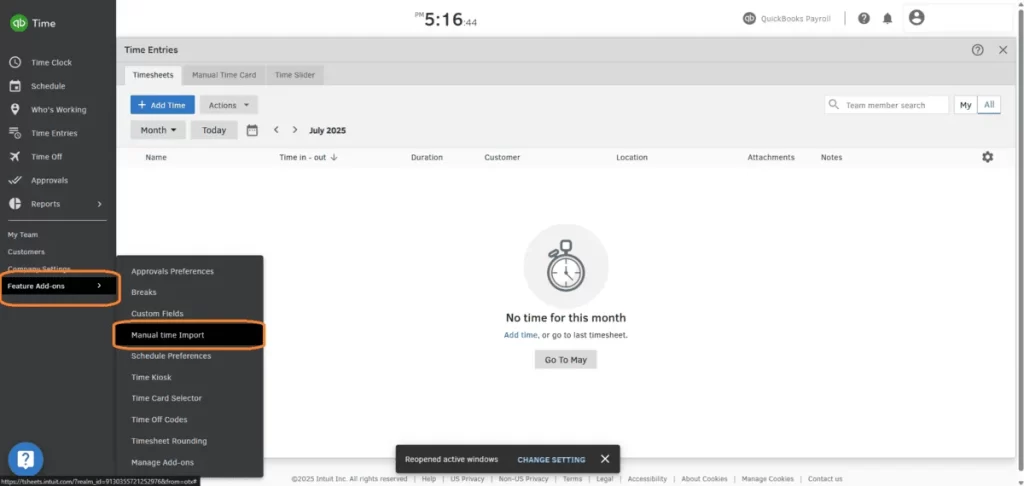
- In the Classic interface, go to Feature Add-ons → Manual Time Import.
- Click Choose File and select your saved TimeClick file.
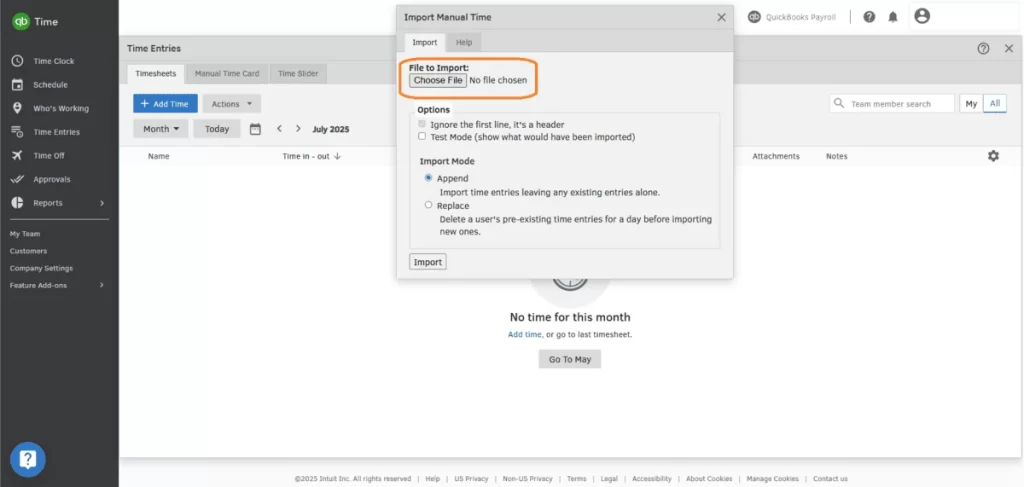
- Click Import.
QuickBooks will read the file and automatically match hours to the correct employees.
What Happens Next?
Since QuickBooks Online only imports total hours, you may need to:
- Manually adjust any employees who worked overtime
- Assign hours to PTO, Vacation, or Sick categories if needed
Unlike QuickBooks Desktop, QuickBooks Online doesn’t import time categories, so a few manual tweaks afterward will keep your payroll accurate.
Quick Disclaimer
- TimeClick isn’t affiliated with QuickBooks, QuickBooks Online, or QuickBooks Time.
- We don’t offer support for QuickBooks products or handle payroll directly.
- We simply provide a report formatted to work with QuickBooks Online imports.
If you run into problems during the import, reach out to Intuit’s support team. If something seems off with the report or you have trouble in TimeClick, email us at support@timeclick.com with your company name and a quick summary of what’s happening.
A Note on Desktop vs. Online
QuickBooks Desktop still provides a smoother, more flexible import experience for TimeClick users.
With Desktop, you can:
- Import all time types, including Overtime, PTO, and Sick
- Skip manual edits after importing
- Run detailed payroll reports more easily
That said, if you’re already using QuickBooks Online, TimeClick will still help you get your hours in cleanly and with minimal effort.
Want a Custom Report?
Need a version of the QuickBooks Online report that fits your setup better? We can usually tweak it for you.
Just email support@timeclick.com with:
- Your company name
- That you use QuickBooks Online
- A sample of the file you normally upload (CSV, Excel, or PDF)
We’ll take a look and see what we can do.
Don’t Use QuickBooks? We’ve Got You Covered.
If your company runs payroll through Gusto, ADP, or another platform, there’s a good chance we already have a matching report - or can make one for you.
Email support@timeclick.com with:
- Your company name
- The payroll software you use
- A sample of your import file
We’ll let you know what options are available or build a version that works for your system.
Final Thoughts
QuickBooks Online isn’t the easiest when it comes to importing time data, but TimeClick makes it as simple as possible. With a little setup, you can get your team’s hours into payroll quickly and accurately.
Need a hand? Email support@timeclick.com - we get back fast.
Haven’t tried TimeClick yet? Get your FREE 14-day trial and see how smooth time tracking and QuickBooks payroll can be.
Start your FREE TimeClick Trial Today.