Welcome to the Utilities module in TimeClick – your central hub for backups, licenses, and system maintenance.
The Utilities module is where you’ll find the technical tools that keep your TimeClick system healthy and secure.
It’s the behind-the-scenes workspace where you can back up your database, manage licenses, and set up automated safety features to protect your data.
If you’ve ever asked yourself:
- How can I make sure my data is protected?
- How do I remove old devices that are using up license slots?
- Where can I check the size of my license?
The Utilities module is where you’ll find those answers. Let’s take a closer look at what each section does and how to use it.
Manage Database
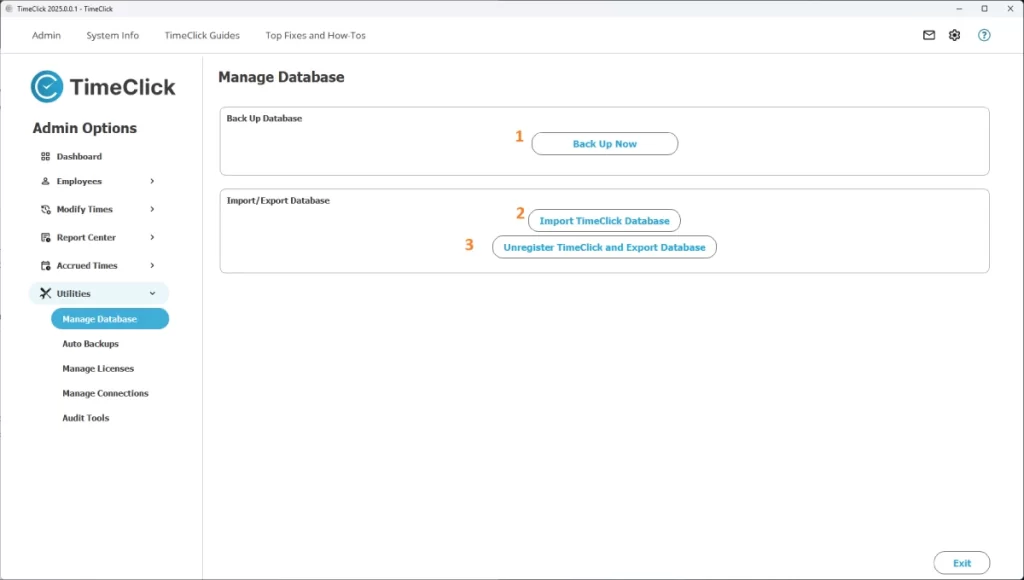
The Manage Database section is all about protecting and transferring your data. Inside, you’ll find three key tools that handle backups, imports, and server moves.
Back Up Now
Click this button to instantly create a compressed .tcdb backup file of your TimeClick data.
You’ll be prompted to choose where to save the file (by default, it saves to a “backups” folder on your C: Drive). The process is quick, the file size is small, and you can run backups as often as you like.
IMPORTANT
If you’re planning to move your TimeClick server, don’t rely on a simple backup alone.
Follow our step-by-step guide instead:
Skipping these steps may cause connection errors or data issues.
Import TimeClick Database
This tool allows you to import a previous backup file. Use it carefully – importing a database will immediately overwrite all current data in TimeClick.
We strongly recommend contacting our support team before using this feature.
You can reach us anytime at timeclick.com/support.
Unregister TimeClick and Export Database
This button is used when you’re officially moving your TimeClick server. It unregisters your current server, creates a backup, and generates the files you’ll need to set up on a new computer.
For full instructions, visit Move Your TimeClick Server. When done correctly, the entire process takes less than five minutes.

Auto Backups
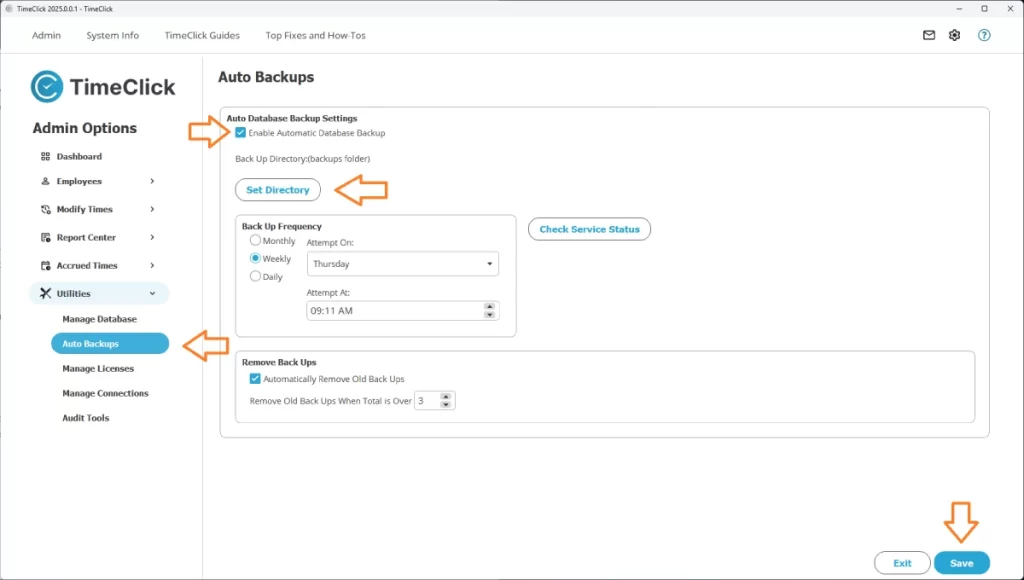
Manual backups are helpful, but automated backups are even better. The Auto Backups tab lets you schedule TimeClick to back up automatically every day, week, or month.
By default, TimeClick creates a backup once a week and saves it here:
C:\Program Files (x86)\TimeClick Server\backups
That location works fine for most users, but remember that anything stored on your C: Drive can be lost if your computer fails.
For better protection, we recommend saving backups to a safer location such as an external hard drive or a cloud-synced folder using Dropbox, Google Drive, or OneDrive.
A few quick things to know:
- Backups are very small, usually 1–2 MB each.
- By default, TimeClick keeps the three most recent backups (you can change this setting).
- Your computer must be on at the scheduled backup time for it to run successfully.
To set it up: check the box at the top of the screen, choose how often and when you’d like backups to occur, select how many backups to keep, and click Save.
TIMECLICK TIP
If you see a “Check Service Status” button, you can ignore it. That option only applies to older versions of TimeClick (21.4 and earlier). In TimeClick 25 and newer, it’s not needed.
Manage Licenses
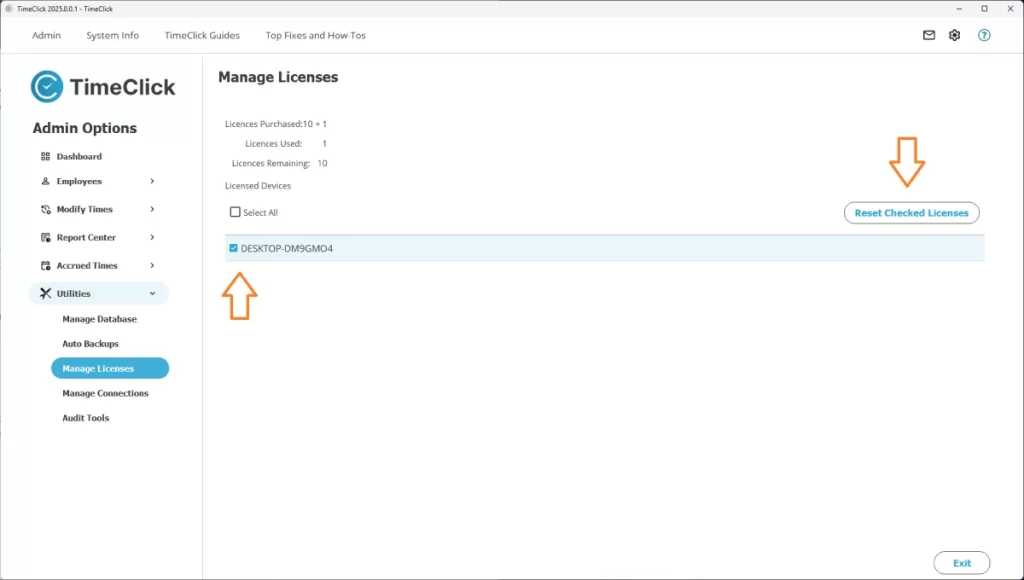
The Manage Licenses tab is one of the most frequently used sections in Utilities. This is where you can remove old devices and free up license slots when computers are replaced or no longer in use.
Here’s how it works:
- Each device that runs TimeClick uses one license slot, including your server.
- When you install TimeClick on a new computer, tablet, or phone, you may need to remove an older device that’s no longer active.
- To do this, simply check the box next to the device you want to remove and click Reset Checked Licenses. That’s all it takes.
TIMECLICK TIP
Not sure which device is which? No problem – it’s completely safe to select all and reset. This won’t affect anyone currently using TimeClick or interrupt logins.
As soon as an employee clocks in, clocks out, or opens TimeClick, their device will automatically reappear on the list.
Need more help? These quick guides can walk you through common license issues:
One last note: In older versions of TimeClick (TC 20 and earlier), license counts may not always match your purchased total. This is normal. Once you’re on TC 21 or newer, the numbers will automatically align with your license size.
Manage Connections
The Manage Connections tab shows the IP address of your current TimeClick server and helps you confirm that only one server is active on your network.
You can also click Listen to have TimeClick automatically search your network for other servers.
IMPORTANT
You should only have one active TimeClick server at a time. If you find another one – even if it’s old or unregistered – uninstall it. Having multiple servers can cause connection issues and prevent clients from syncing correctly.
Audit Tools
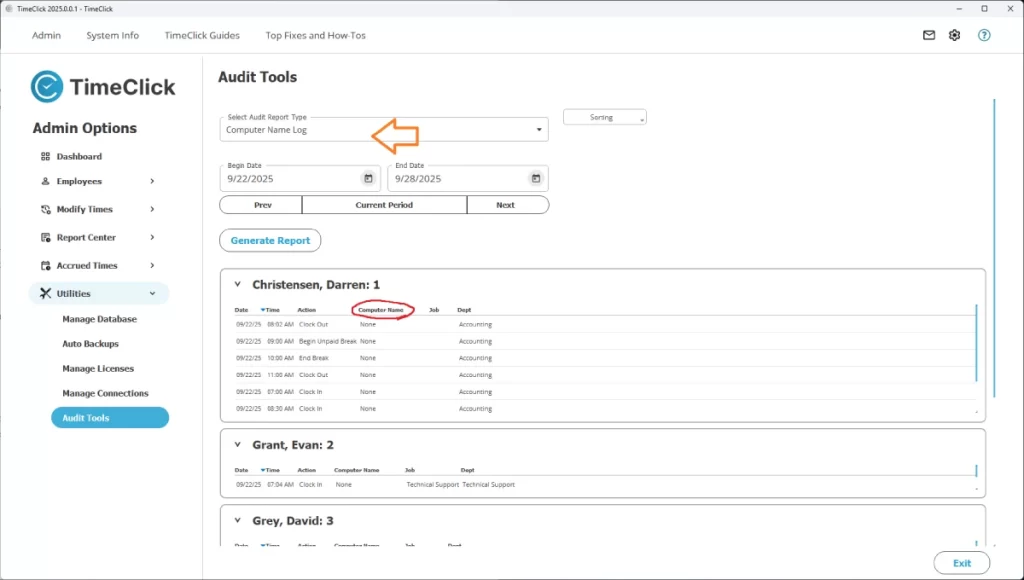
The Audit Tools tab gives you visibility into activity within TimeClick. It includes two helpful reports for tracking changes and identifying unusual behavior.
Modified Times Report
This report lists every time entry that’s been edited – showing when the change happened, what was modified, and who made the change. It’s a useful way to catch errors and ensure administrative permissions are being used appropriately.
Computer Name Log
This report shows which devices employees are using to clock in and out. If you notice odd patterns or unexpected logins, it may indicate that someone is clocking from the wrong computer.
For ongoing issues or repeated inconsistencies, we recommend contacting our support team. However, these reports are a quick and effective way to review activity on your own.
Wrapping Up
The Utilities module isn’t something you’ll use every day, but it’s one of the most important tools when you need it.
Whether you’re backing up data, resetting licenses, or moving your server, these features help keep TimeClick stable, secure, and running smoothly behind the scenes.
