Resetting your Admin password in TimeClick only takes a minute, but there’s one key thing to know first.
If you can’t log in because the Admin password is completely forgotten, reach out to our support team. We’ll send you a temporary override password that works for that day only. Once you’re in, you’ll use that temporary password as your “current password” to create a new one.
When You Might Need This

- You forgot your Admin password.
- A former admin left your company and you need to regain access.
- You’re updating passwords for added security.

Step 1: Log in as Admin
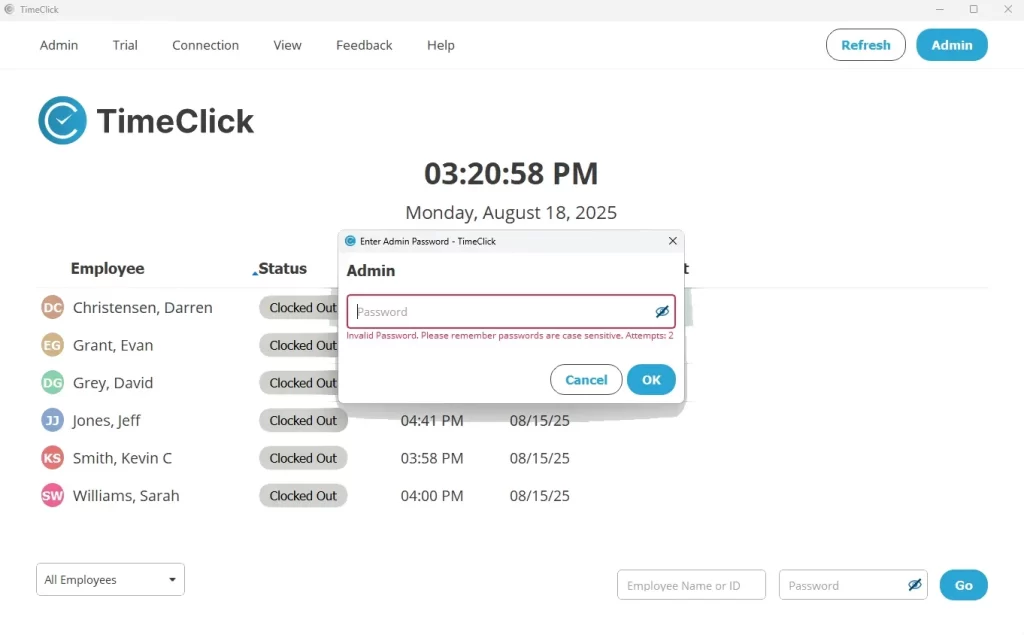
- From the main screen, click Admin in the top-right corner.
- Enter your Admin password and log in. If you received a temporary override password from support, use that instead.
Step 2: Reset the Password
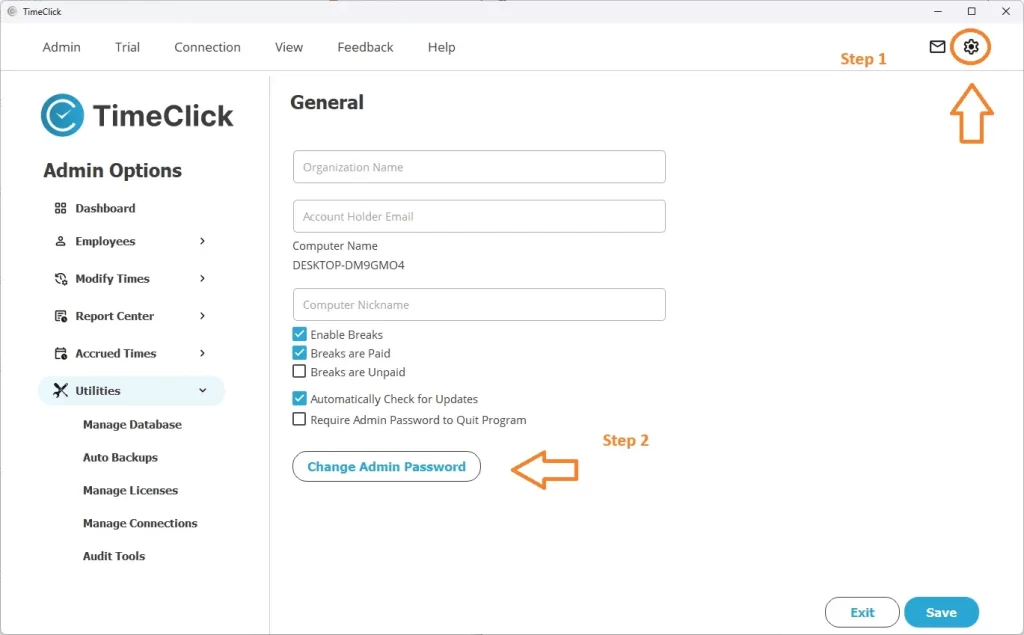
- Click the gear icon in the top-right corner, then go to Settings → General.
- If you’re using TC 21 or an older version, go to Preferences → General.
- Select Change Admin Password.
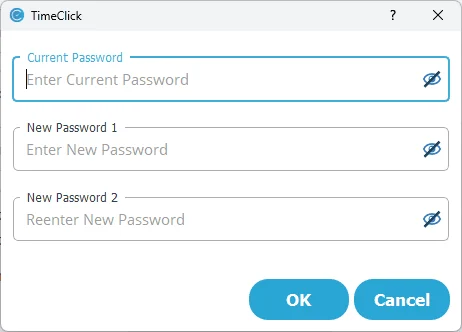
- Enter your current password (or the temporary one if provided by support).
- Type your new password twice to confirm.
- Save your changes - you’re all set!
Security Tips
- Use a unique password that’s not easy to guess.
- Update the Admin password regularly, especially when team members change.
- Keep the Master Admin password private and limited to ownership or trusted management.
Conclusion
If you still know your Admin password, resetting it takes less than a minute inside the program. If you’ve forgotten it completely, contact our support team for a same-day temporary override password. Once you’re back in, set a new Admin password right away so you never get locked out again.
