
Most payroll mistakes don’t start with clock-in times. They usually start with lunch. Forgetting to deduct a break, entering it twice, or even a small formatting mistake can mess up daily totals and cause confusion later.
This guide will show you step by step how to correctly use a free time card calculator that handles unpaid breaks and overtime. You’ll learn how to enter break times, see how the totals adjust automatically, and make sure everything adds up before you send it off to payroll.
Table of Contents
- What “Breaks” Mean in a Time Card Calculator
- Unpaid Lunch vs Paid Rest Breaks
- What You’re Actually Subtracting From Work Hours
- Step-by-Step: How to Use a Free Time Card Calculator With Breaks
- Step 1: Enter the Clock-In Time
- Step 2: Enter the Clock-Out Time
- Step 3: Enter Unpaid Break or Lunch Time
- Step 4: Confirm the Daily Total Updates Automatically
- Step 5: Repeat for Each Workday
- Step 6: Enter Overtime Thresholds (If You Want Overtime Calculated)
- Step 7: Review Weekly Totals Before Payroll
- How Overtime Works in the Calculator
- Setting Daily Overtime Thresholds
- Setting Weekly Overtime Thresholds
- What Happens If You Set Both Daily and Weekly Thresholds
- How Break Deductions Impact Overtime Totals
- Why Your Overtime Totals Might Look Off
- Break Deduction Examples (So You Can Double-Check Your Math)
- 8:00 AM to 5:00 PM With a 30-Minute Lunch
- 9:00 AM to 5:00 PM With a 1-Hour Lunch
- Short Shift With No Lunch
- Split Shift With One Unpaid Break
- When Manual Calculations Become a Burden
- Common Break Mistakes That Throw Off Totals
- Forgetting to Subtract Lunch
- Subtracting Paid Breaks by Accident
- Entering Break Time in the Wrong Format
- Inconsistent Break Deductions Across the Week
- Printing and Emailing Your Time Card Totals
- How to Generate a Printable Time Card
- How to Email a PDF Copy
- What to Review Before Sending to Payroll
- When Break Tracking Starts Getting Complicated
- Multiple Breaks in One Day
- Missed or Shortened Lunches
- Different Break Rules by Role
- When You Need More Than a Calculator
- Try the Free Time Card Calculator With Breaks
- Frequently Asked Questions
- Final Thoughts
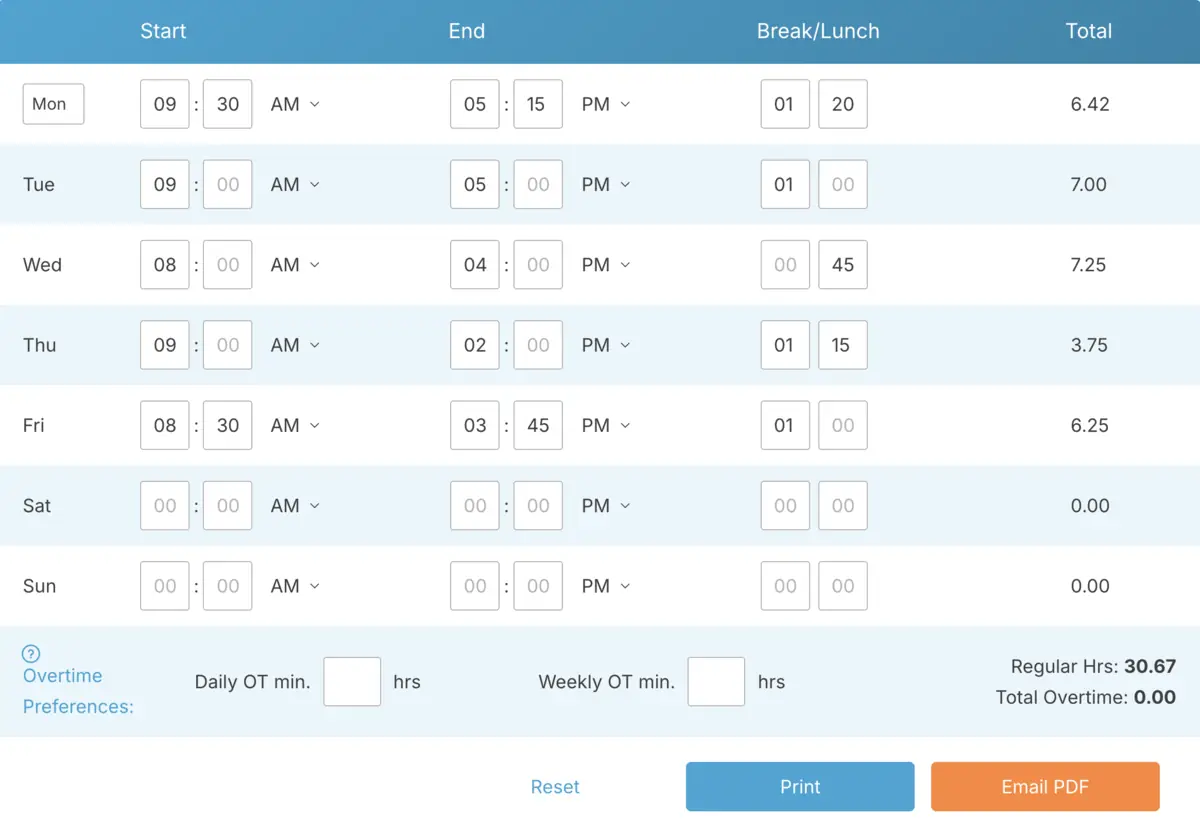
What “Breaks” Mean in a Time Card Calculator
Unpaid Lunch vs Paid Rest Breaks
In most workplaces, lunch breaks aren’t paid. That means the time gets subtracted from the total hours worked. Paid rest breaks, however, are usually part of the total work hours and shouldn’t be deducted.
When you’re using a time card calculator with a break field, it’s typically for unpaid break time only. If the break is paid, just leave that field at zero, and the calculator will count the entire shift as worked time.
What You’re Actually Subtracting From Work Hours
The break field is for time that shouldn’t be paid. For instance, if someone works from 9:00 AM to 5:00 PM and takes a one-hour unpaid lunch, you’d subtract 1:00 from the total shift.
The calculator does the math for you. Once you enter the break duration, it updates the daily total so you can instantly see how many payable hours are left.
Step-by-Step: How to Use a Free Time Card Calculator With Breaks
Step 1: Enter the Clock-In Time

Start by typing in the employee’s clock-in time for the day. Be sure to use the correct format, whether it’s standard time with AM and PM or 24-hour time, depending on the calculator’s settings.
Step 2: Enter the Clock-Out Time

Next, add the clock-out time. Once both times are entered, the calculator will instantly show the total shift length before any breaks are taken out.
Step 3: Enter Unpaid Break or Lunch Time

In the break field, input the total unpaid break time for the shift. For example, if the employee took a 30-minute unpaid lunch, enter 0:30 or 30 minutes, depending on the calculator’s format.
After you enter the break, the calculator will automatically subtract it from the total shift time.
Step 4: Confirm the Daily Total Updates Automatically

Once the break is entered, check the updated daily total. This number shows the actual payable hours for that day.
If something doesn’t look right, double-check the break entry. Most small errors happen when break time is entered incorrectly.
Step 5: Repeat for Each Workday
Keep going by entering the start time, end time, and unpaid break time for each day worked during the week. The calculator will add everything up as you go.
Step 6: Enter Overtime Thresholds (If You Want Overtime Calculated)

If you’d like the calculator to separate regular hours from overtime, set your overtime thresholds before wrapping up the week. Many calculators let you set daily overtime limits, weekly overtime limits, or both.
Once the thresholds are in place, the calculator will automatically figure out overtime totals based on the hours worked after unpaid breaks are deducted.
Step 7: Review Weekly Totals Before Payroll

Before you print or email the results, take a moment to review the weekly total at the bottom. Make sure break deductions were applied consistently across all the days.
How Overtime Works in the Calculator
Setting Daily Overtime Thresholds

If your workplace tracks daily overtime, you can set a daily threshold in the calculator. For example, if overtime kicks in after 8 hours in a single day, just enter "8 hours" as the daily limit.
Once the daily total goes over that limit, the calculator will automatically separate regular hours from overtime hours.
Setting Weekly Overtime Thresholds

Some businesses calculate overtime based on total weekly hours instead. In that case, you can set a weekly overtime threshold, like "40 hours."
As you enter each day’s hours, the calculator keeps a running weekly total and applies overtime automatically once the threshold is hit.
What Happens If You Set Both Daily and Weekly Thresholds
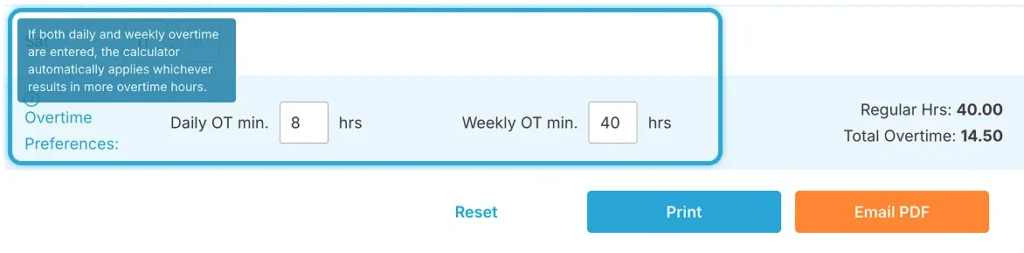
If you set both daily and weekly overtime limits, the calculator will compare the results and apply whichever gives the higher overtime total.
This ensures employees get the most accurate overtime calculation without you needing to do the math yourself.
How Break Deductions Impact Overtime Totals
Overtime is based on payable hours, not scheduled hours. This means unpaid breaks lower the total hours that count toward overtime.
For example, if someone works from 9:00 AM to 6:00 PM with a one-hour unpaid lunch, the shift counts as 8 payable hours, not 9. If the break is entered incorrectly, it can make overtime totals look too high or too low.
Why Your Overtime Totals Might Look Off
If your overtime numbers seem wrong, start by checking two things: the break entry and the overtime threshold settings. A missed lunch deduction or an incorrect threshold can throw off the totals quickly.
Most overtime issues aren’t math errors. They’re usually caused by break times being entered inconsistently.
Break Deduction Examples (So You Can Double-Check Your Math)
8:00 AM to 5:00 PM With a 30-Minute Lunch
Start time: 8:00 AM
End time: 5:00 PM
Unpaid break: 0:30
The total shift is 9 hours. After subtracting a 30-minute unpaid lunch, the payable time comes out to 8.5 hours.
9:00 AM to 5:00 PM With a 1-Hour Lunch
Start time: 9:00 AM
End time: 5:00 PM
Unpaid break: 1:00
This shift is 8 hours long. After taking out a one-hour unpaid lunch, the total payable time is 7 hours.
Short Shift With No Lunch
Start time: 1:00 PM
End time: 5:00 PM
Unpaid break: 0:00
Since no unpaid break was taken, the entire 4-hour shift counts as payable time.
Split Shift With One Unpaid Break
Start time: 7:00 AM
End time: 3:00 PM
Unpaid break: 0:45
The total shift is 8 hours. After subtracting a 45-minute unpaid break, the payable time is 7 hours and 15 minutes.
When Manual Calculations Become a Burden
Running these calculations once or twice is fine, but doing them every pay period across a full team is where mistakes and missed hours creep in. A dedicated time clock app for small business removes the manual step entirely: employees clock in and out, breaks are deducted to your rules, and overtime is split automatically for payroll.
Common Break Mistakes That Throw Off Totals
Forgetting to Subtract Lunch
One of the most common mistakes is forgetting to enter the unpaid lunch. If you leave the break field blank, the calculator assumes the entire shift was worked.
This can inflate daily totals and make weekly hours look higher than they actually are.
Subtracting Paid Breaks by Accident
Paid rest breaks shouldn’t go in the unpaid break field. If you accidentally subtract paid break time, you’ll end up reducing payable hours incorrectly.
When in doubt, only enter time that isn’t paid.
Entering Break Time in the Wrong Format
Some calculators use hours and minutes, while others allow decimal entry. For example, entering 0.5 when the system expects 30 minutes can throw off your totals.
Always double-check whether the break field expects hours and minutes or a decimal format.
Inconsistent Break Deductions Across the Week
If lunch breaks vary from day to day but aren’t entered consistently, your weekly totals can end up looking uneven. Even small differences can add up over several shifts.
Before finalizing your totals, take a moment to review each day and make sure break times were entered accurately and consistently.
Printing and Emailing Your Time Card Totals
How to Generate a Printable Time Card

After you’ve entered all the start times, end times, breaks, and overtime thresholds, you can create a printable version of the time card. The print option organizes the week clearly, making it easy to review totals.
Before hitting print, scan the break column one last time. A quick check can catch small mistakes before they make it to payroll.
How to Email a PDF Copy

If you need to send the totals to a manager or payroll processor, use the email PDF option. The calculator creates a clean, shareable copy that includes daily totals, overtime (if applicable), and overall weekly hours.
This is especially useful for remote approvals or when you need to keep documentation for records.
What to Review Before Sending to Payroll
Make sure unpaid breaks were entered correctly for each day. Then double-check that the overtime thresholds match your company’s policy.
Spending just 30 seconds to review break deductions and overtime settings can save you from back-and-forth questions later.
When Break Tracking Starts Getting Complicated
Multiple Breaks in One Day
Some shifts include more than one unpaid break. In these cases, you’ll need to add up the total unpaid time and enter it as a single number in the break field.
If the length or timing of these breaks changes often, it’s especially important to double-check your entries before finalizing the totals.
Missed or Shortened Lunches
If an employee skips lunch or takes a shorter break than usual, make sure you enter the actual unpaid time, not the standard policy amount.
Using a default break instead of the real one is one of the quickest ways to throw off your totals.
Different Break Rules by Role
In some workplaces, break rules vary depending on the employee’s role or shift type. This means break deductions might not look the same for everyone.
When policies differ, it’s even more important to stay consistent and accurate with your data entry.
When You Need More Than a Calculator
If you’re constantly fixing break entries, adjusting for missed lunches, or reviewing time cards line by line, it might be time to consider a more structured solution.
A calculator works great for straightforward inputs, but if break tracking starts to feel unpredictable, a time tracking system like TimeClick could save you time and effort.
For small teams that would rather skip manual entry altogether, a dedicated time clock app for small business can record breaks automatically as employees clock out and back in, removing the guesswork before payroll ever sees it.
Try the Free Time Card Calculator With Breaks
Want to see how break deductions impact daily and weekly totals in real time? Give the calculator a try. Enter a sample week, adjust the break times, and watch the totals update automatically.
You can also set daily and weekly overtime thresholds, create a printable time card, or email a PDF copy once everything looks good.
Frequently Asked Questions
Here are answers to some of the most common questions about using a free time card calculator to handle unpaid breaks.
Do I subtract paid breaks in a time card calculator?
No, paid breaks shouldn’t be entered in the unpaid break field. Only time that isn’t paid, like an unpaid lunch, should be deducted. If you subtract paid breaks, you’ll reduce the total payable hours incorrectly.
What if someone didn’t take their lunch break?
If no unpaid break was taken, just enter zero in the break field for that day. The calculator will count the entire shift as payable time.
What if an employee took a shorter lunch than usual?
Enter the actual unpaid break time, not the standard policy amount. The calculator subtracts exactly what you enter, so it’s important to be accurate with break times.
Can I use this calculator for biweekly payroll?
Yes, you can. You can total one week at a time and combine the results, or enter the full pay period if the calculator allows it. Just make sure the overtime thresholds match your payroll policy.
Why do my totals look off by 15 to 30 minutes?
Small discrepancies are usually caused by break entries. Double-check that unpaid lunch time was entered correctly and in the right format. Also, make sure your overtime thresholds are set properly.
Final Thoughts
If your time card totals seem off, the problem is usually with break entries, not the math. Taking a few extra seconds to enter unpaid lunch time correctly can save you from headaches later.
A free time card calculator with break support makes the process easy. Just enter the shift, subtract unpaid breaks, review overtime if needed, and then print or email clean, accurate totals with confidence.
Not using TimeClick yet? Try our time clock software free. 10-minute setup, unlimited users, and built for small businesses. No credit card required.
Start your FREE TimeClick Trial Today.