Welcome to the Employees module in TimeClick.
This is where you manage everything related to your team - from creating new employee records and updating profiles to setting schedules, permissions, and department structures.
It’s the central hub for all employee management in TimeClick. Whether you’re adding a new hire, adjusting pay settings, or defining admin access, it all happens here.
Sections of the Employees Module
A quick look at what each section does.
- Edit Employee - View, add, or update individual employee records.
- Edit Department - Create or manage departments and assign employees to them.
- Edit Job - Similar to departments, but focused on job roles. You can assign employees and set job rates for tracking time by task or role.
If you use the Geo feature, you may also see Edit Boundaries in this section. This feature will move under the Mobile Module in the future.
For now, you can learn more in our TimeClick Mobile Guide.

Edit Employee

Everything you need to manage an individual employee’s record.
When you open Edit Employee, you’ll see a list of all active employees in your company.
- To view or edit a record, select an employee and click Edit Employee Record.
- To see past or terminated employees, check the Include Terminated Employees box at the bottom of the list.
Inside each employee record, you’ll find six main tabs at the top:
1. Name
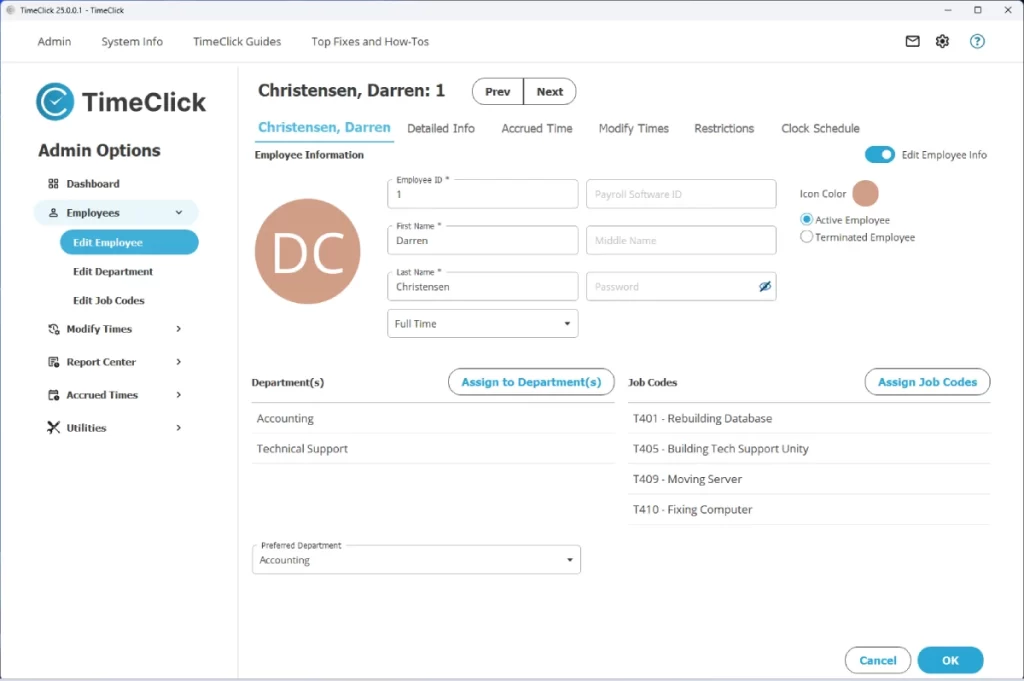
This tab includes the basics such as name, password, employee status, and assigned department or job. You can also upload a photo for easier identification.
2. Detailed Info
This section stores contact details, address, and other personal information. Many companies skip this step if their payroll software already holds this data.
TIMECLICK TIP
At the bottom of this tab, you’ll find Payroll Info. Enter an employee’s pay rate here to run quick payroll estimate reports.
You can see how this works in our Dashboard Guide.
3. Accrued Time
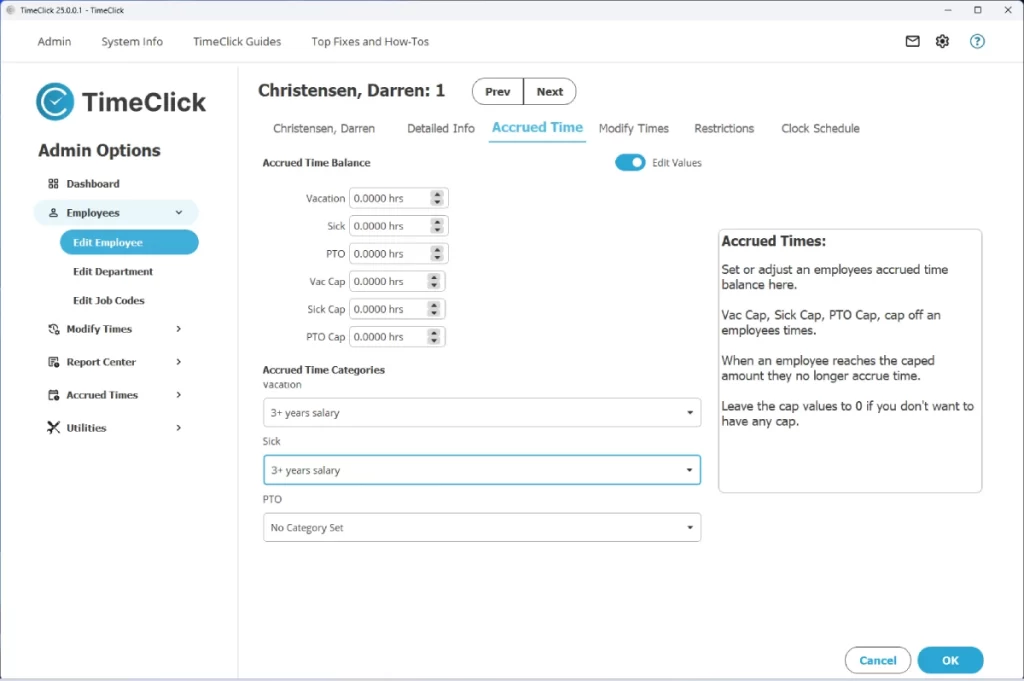
This tab appears only if the Accrued Time feature is turned on in the Accrued Time module.
- Manually adjust PTO, vacation, and sick balances (all changes are tracked).
- Assign accrual categories for each type of time off.
- Set caps or limits for PTO, vacation, and sick time.
For full setup details, see our Accrued Time & PTO Guide.
4. Modify Times
Quickly access an employee’s time records to make edits or adjustments.
- You can also do this from the Modify Times Module, which allows you to edit multiple employees.
- Learn more in the Modify Times Guide.
5. Restrictions
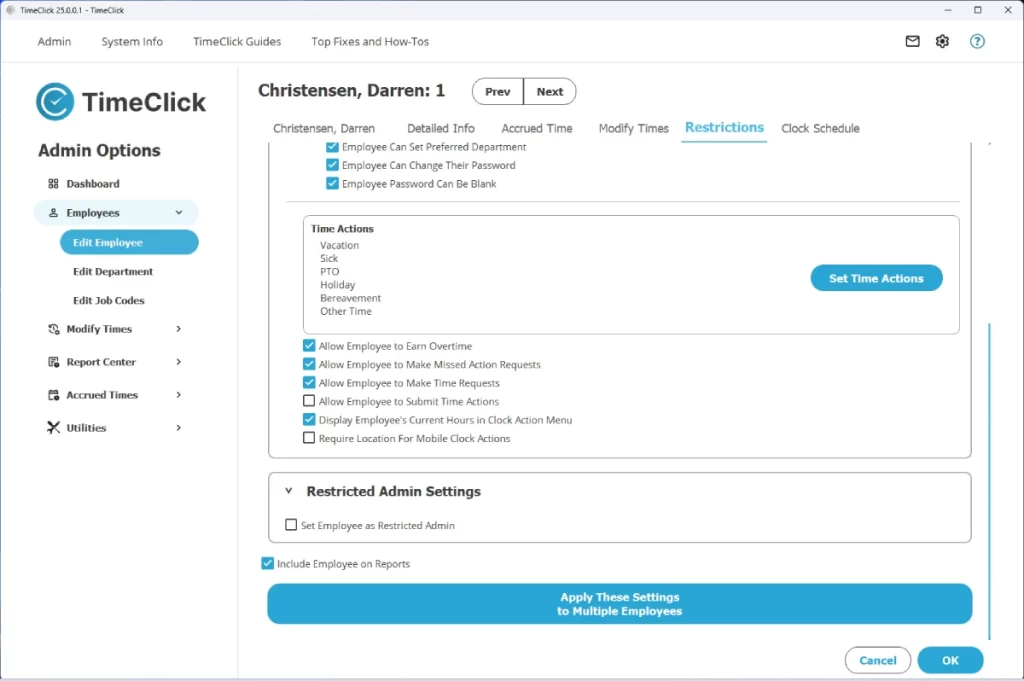
This tab controls what each employee can do in TimeClick.
- Can they send messages?
- Run their own reports?
- Submit PTO requests?
- Change their password?
Most companies use the default permissions, but you can adjust these settings if you want to give an employee more or fewer capabilities.
This is also where you set up a Restricted Admin (Level 2 Admin).
- Restricted Admins can be given specific admin powers such as modifying times, running reports, creating new employees, or managing PTO.
- Many businesses use this feature to allow managers or department heads to oversee their own teams.
For a complete walkthrough, see our Restricted Admin Guide.
6. Clock Schedule
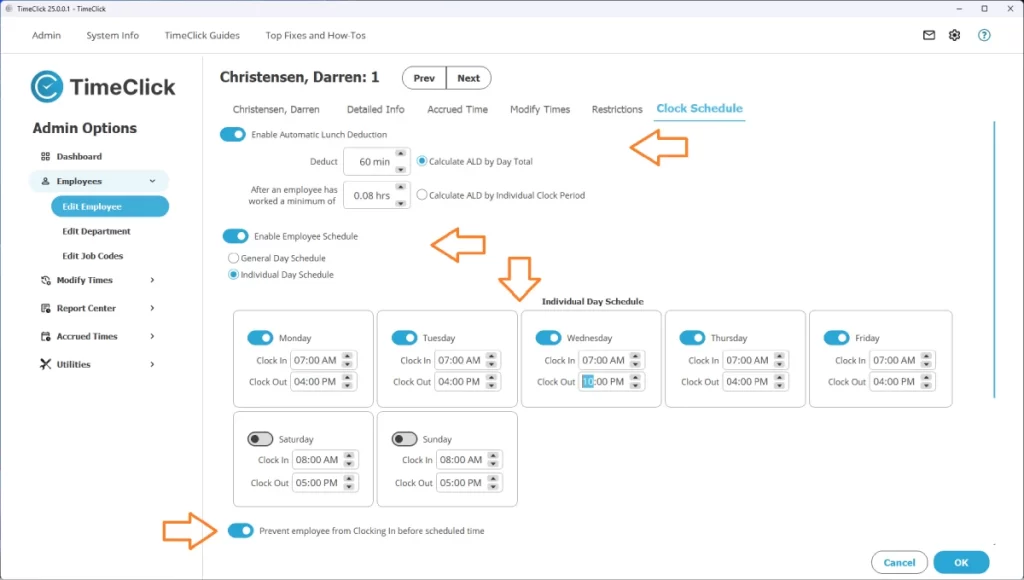
This tab helps you define employee work schedules, early clock-in rules, and automatic lunch deductions.
Use it to:
- Set up basic weekly work hours.
- Prevent early clock-ins.
- Define what counts as late, on-time, or early.
- Enable ALD (Auto Lunch Deduction).
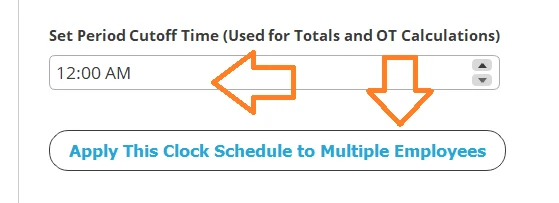
- Adjust the 24-hour “day” for overnight shifts.
TIMECLICK TIP
You can apply these schedule settings to multiple employees at once to save time.
For more details on these features, see:
- Auto Lunch Deduction Guide
- Midnight Shift Guide
- Scheduling, Attendance & Punctuality Guide
- Prevent Early Clock-Ins Guide
Edit Department & Edit Job
Where you organize employees into departments and job roles.
The Edit Department and Edit Job sections work the same way:
- Create, edit, or delete departments and jobs.
- Assign employees to their department or job role.
- Set department heads or managers as needed.
Simple, straightforward, and a great way to keep your team structure organized.
Wrapping Up
Your central hub for managing people in TimeClick.
The Employees module is where you manage team details, organize departments and job roles, and define schedules and permissions. It ties together everything related to your workforce in one place. For deeper guidance, use the links above for detailed walkthroughs.
Need help? Visit our Support Page or reach out and our team will get back to you quickly.
