Keeping your contact and billing information current makes sure you continue receiving receipts, renewal reminders, and support updates without interruption. Here’s the fastest way to make changes when something needs updating.
The Easiest Way (Recommended)
The fastest way to update your information is to email us at support@timeclick.com.
In your message, include the following details so we can process your update right away:
- Company name
- Primary contact name
- Contact email (and phone number, if it’s changing)
- Other updates such as billing address or additional contacts
Once we’ve made the updates, we’ll send a confirmation back to you. We respond quickly - it’s really that simple.

Update Your Credit Card on File
You can update your card by chat, phone, or online - whichever is most convenient for you.
Chat or Call: It only takes about two minutes. We’ll securely update your payment method on file. (For security reasons, please don’t email credit card numbers.)
Self-Serve Portal: Visit www.purchase.timeclick.com and log in using your account email.
Not sure what your account email is?
It’s the address where you currently receive TimeClick invoices, receipts, and product updates.
Common Point of Confusion: Company Details in the Software
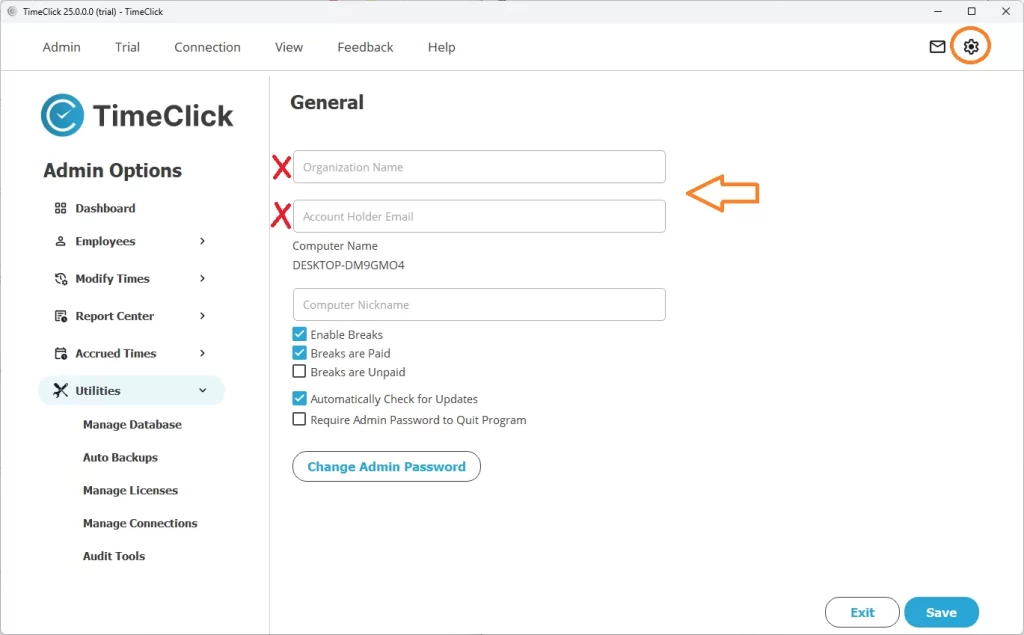
Inside Admin Mode in TimeClick, you’ll see fields for your company details under:
- Preferences (TC 21 or earlier) or Settings (TC 25 and newer)
- Organization Name – appears on reports
- Account Holder Email – for internal reference only
TIMECLICK TIP
These fields are local-only and don’t update our billing or contact system.
To change what we use for receipts, renewals, or support communication, please email support or use the purchase portal linked above.
Quick Reference
- Update contact info → Email support@timeclick.com
- Update credit card → Chat/Call (~2 min) or www.purchase.timeclick.com (use your account email)
- Changes in Preferences/Settings → Local only (controls report headers and internal info, not billing)
Need Help?
Not sure which email is linked to your account or having trouble logging in to the purchase portal? Reach out to us - we’ll verify your details and get you squared away fast.
