Adding TimeClick to a new computer? Moving TimeClick from one workstation to another? Either way, the steps are simple. This guide walks you through both in about 2 minutes.
Before You Start
You'll need:
A running TimeClick Server
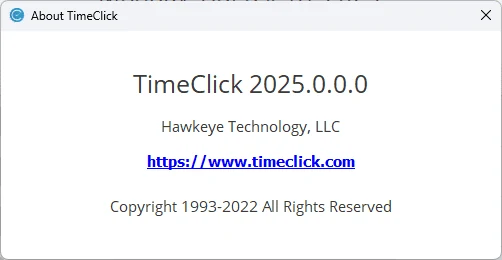
Your TimeClick version
- TC 25 → System Info → My Version
- TC 21 or older → Help → About TimeClick
OPTIONAL: Your server's IP Address
- TC 25 → System Info → IP Address
- TC 21 or older → Connection
Only needed if the new workstation cannot auto-connect.

1. Install TimeClick on the New Computer
On the computer you're adding or moving TimeClick to:
- Go to timeclick.com/download
- Select your version, then click Client under Install to download the workstation installer
- Open the downloaded file to begin installation (takes ~45 seconds)
2. Connect to Your TimeClick Server
After installation, TimeClick should open automatically.
- If the employee list appears normally
You're all set. The workstation connected automatically. - If TimeClick asks for your Server IP Address
Follow the Find Your IP Address guide, enter the IP address, and click Connect. - If you see "License Count Exceeded"
Follow the Fix License Count Exceeded guide to remove unused workstations and free a license slot.
3. If Moving TimeClick: Stop Using the Old Workstation
If you're moving TimeClick from one computer to another:
-
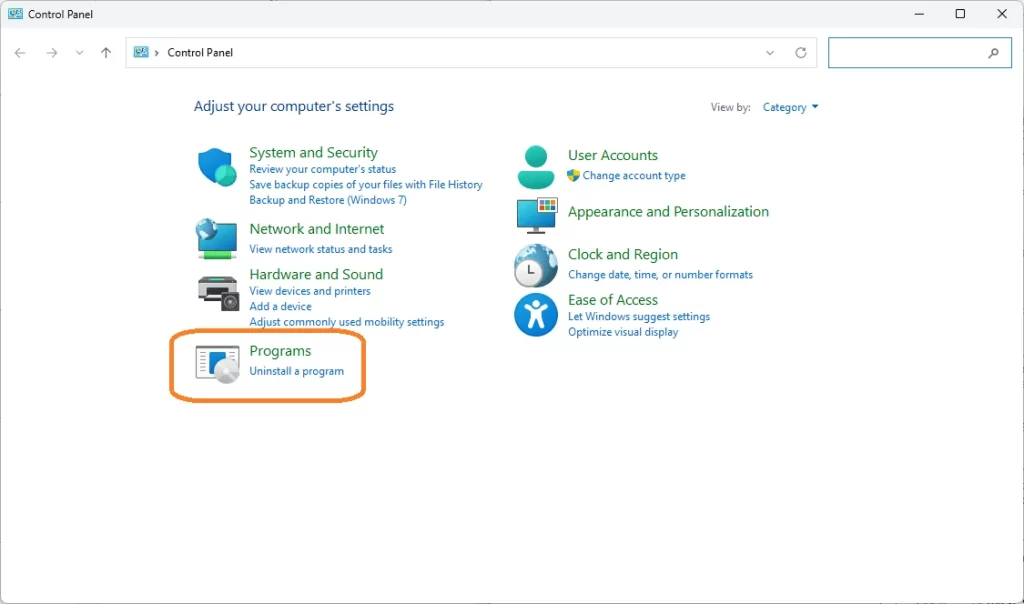
On the old computer, open the Control Panel and go to Programs & Features.
-
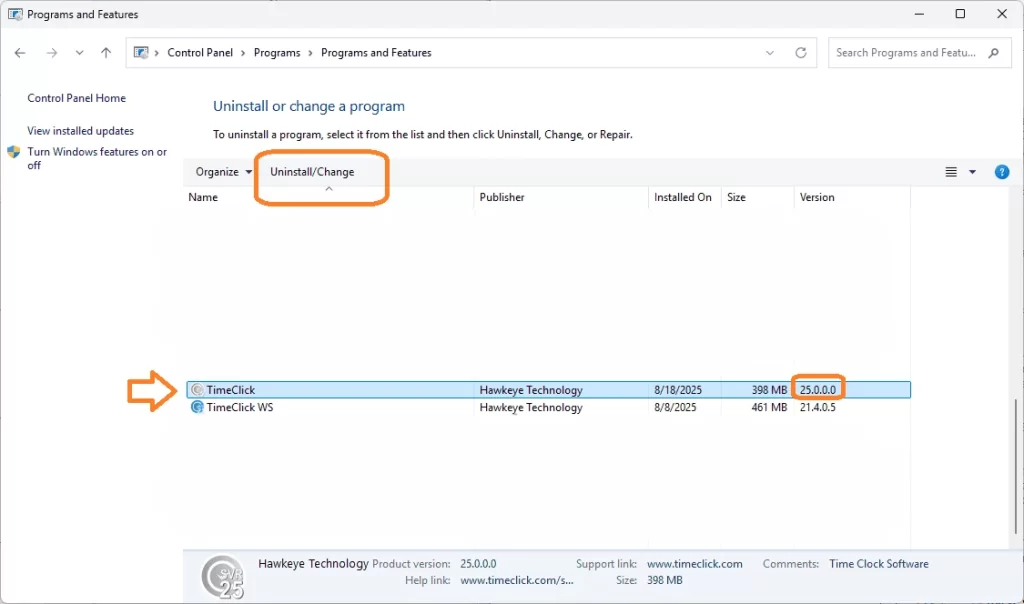
Find TimeClick in the list and uninstall it. (This only removes the program from that workstation - your data stays safe on the server.)
You may also simply stop using the old computer without uninstalling. If TimeClick flags too many devices, run Fix License Count Exceeded to clear the old one.
Have Another Question?
Here are the most requested resources from other users looking for help with this topic:
Need More Help?
If the workstation won't connect or you're unsure about anything:
- Chat with us via live-chat (click the icon on the lower-right edge of your screen). We typically respond in 10 seconds or less.
- Call us at 435-753-4102 ext 2.
- Email us at support@timeclick.com.
- Explore more solutions on our Support Page.
