You can set up and start using TimeClick in just five minutes. This quick guide walks you through everything from installation to running your first payroll report - no guesswork, no hassle.
Here’s what you’ll learn:
- Add and manage employees
- Clock in and out like a real user
- Edit or correct time entries
- Generate reports for payroll
Follow along step-by-step, and by the end you’ll have TimeClick up and running smoothly for your team.
The TimeClick Main Screen
When you first open TimeClick, you’ll see a blank main screen - that’s completely normal. It just means you haven’t added any employees yet.Once you do, their names will appear here.
From there, employees simply select their name, enter their password, and clock in or out.
- Main Screen: Used by employees to clock in and out quickly and easily.
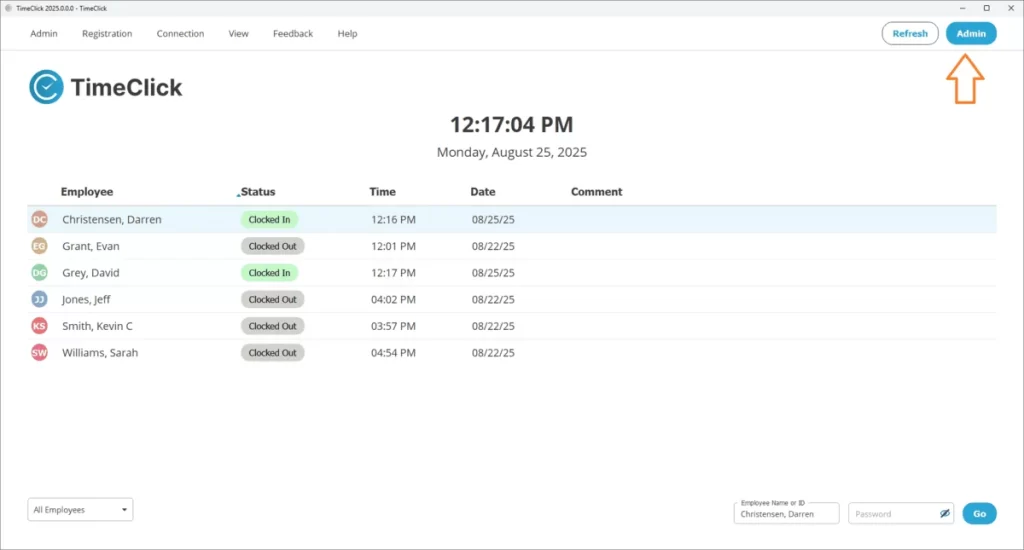
- Admin Mode: Click the Admin button at the top right to log in. This is your control center for creating employees, editing time records, and running reports. You can change the admin password anytime under Settings → General.
Think of it like this: Main Screen = employees. Admin Mode = management.

1. Create an Employee
- Open Admin Mode by clicking Admin at the top right.
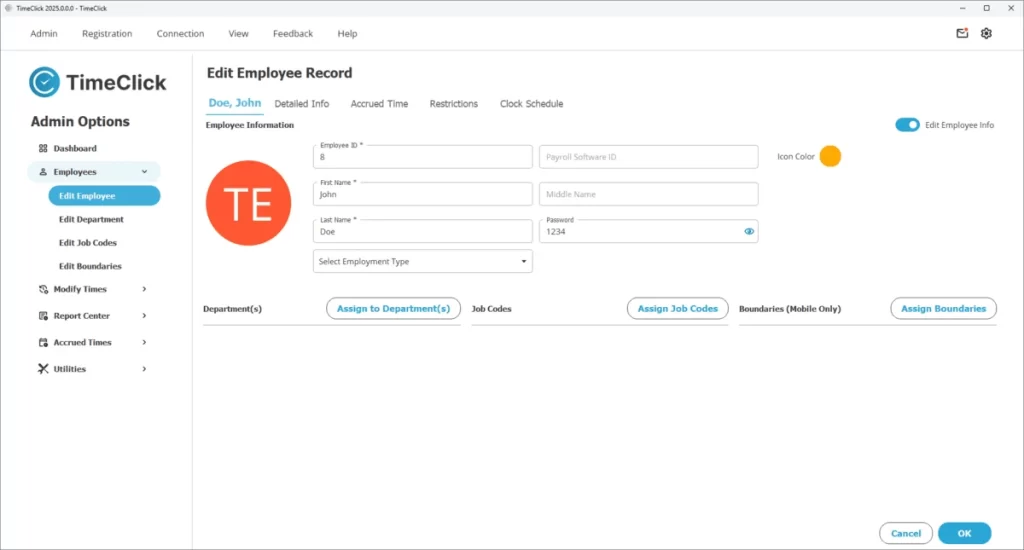
- Go to Employees → Edit Employee → Create New Employee.
- Enter the employee’s name and password (optional), then click OK.
- Exit Admin Mode (or click the TimeClick logo) to return to the main screen.
That’s it! Your new employee now appears on the main screen and can begin clocking in and out right away.
2. Try a Clock In/Out
Let’s test the new employee’s setup:
- On the Main Screen, click the employee’s name.
- Enter their password (if you assigned one).
- Click Clock In.
You’ll see a confirmation message appear. Try clocking them out the same way. This is exactly how your team will use TimeClick every day - fast, simple, and secure.
3. Modify Times When Needed
Occasionally, you’ll need to make adjustments - maybe someone forgot to clock in, clocked out late, or an entry needs correcting. TimeClick makes it simple to keep your records clean and accurate.
- Open Admin Mode and go to Modify Times.
- Select the employee, then click Modify Employee’s Times.
- Pick the date you want to review (for example, today’s date).
- Click an entry to edit it, or choose Add Action to add a new one. You can also delete entries if needed.
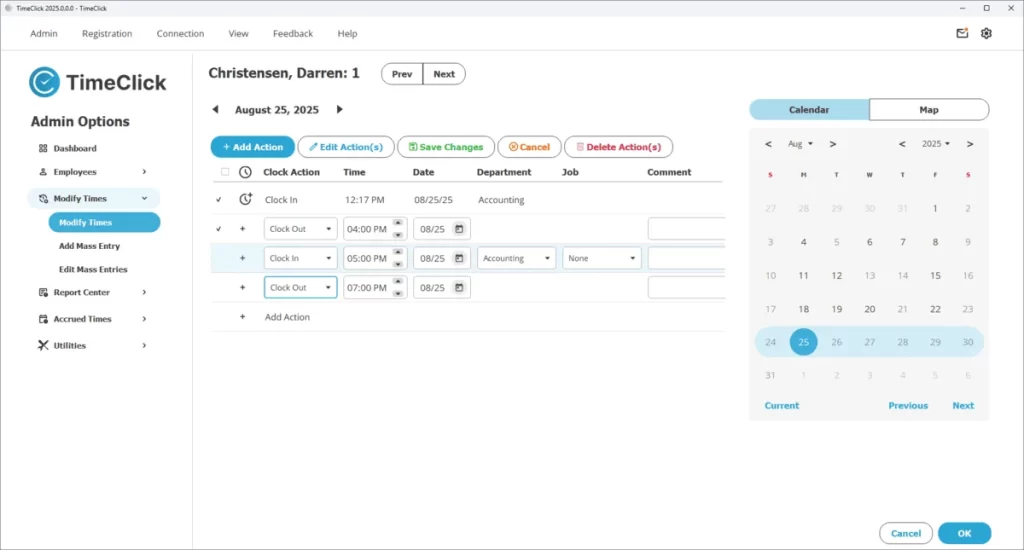
With TimeClick, fixing mistakes takes seconds - no spreadsheets, no confusion.
TIMECLICK TIP
It’s normal for employees to forget a clock in or out now and then. TimeClick’s Modify Times tool helps you correct entries easily so your records stay accurate and payroll stays on track.
Security Reminder: Employees can’t edit their own times by default. Only admins can make changes unless you adjust permissions in the settings.
4. Run Your First Report
Once your team starts clocking in, you’ll want to see total hours worked. Here’s how to generate your first report:
- Open Admin Mode and go to Report Center.
- At the top, choose the type of report. For now, keep it on Hours Report.
- Select a date range that includes clocked hours. In the upper right, pick which employees to include (all active employees are selected by default).
- Choose how you want the data displayed. The most useful options are explained below:
Option What it shows Example Daily Clock Actions Each clock in and clock out Clock In 9:00 AM, Clock Out 5:00 PM Day Totals Total hours worked per day Monday - 8 hours Week Totals Total hours worked per week 40 hours Report Totals Total hours for the selected date range 84 hours Other settings You can skip these for now You can select one option or combine a few depending on how detailed you want your report to be.
Our Recommendation
Choose Daily Clock Actions, Day Totals, and Report Totals for a clear, complete view. Then click View Report to generate a printable PDF for payroll.
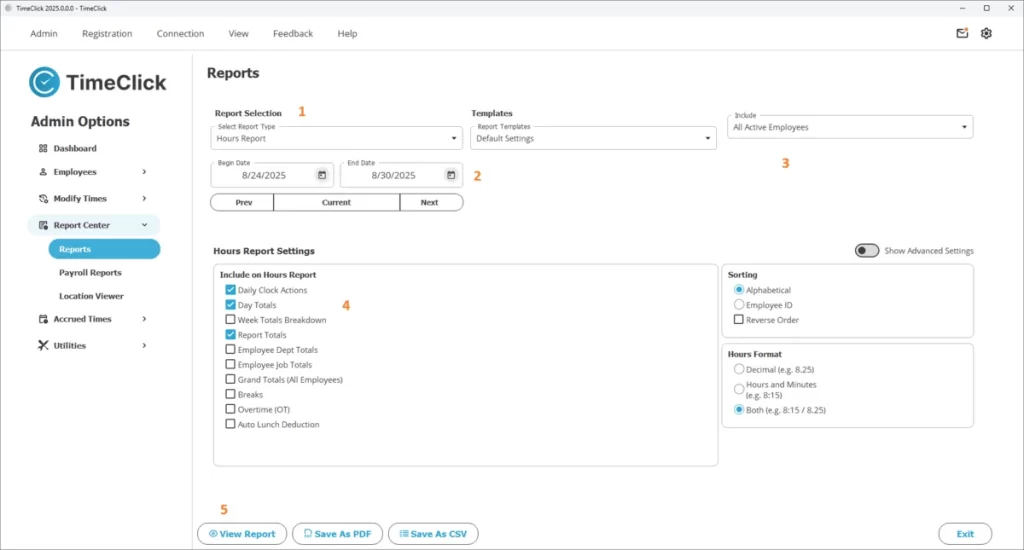
This report gives you hours, overtime, and pay details in one place - everything you need to process payroll quickly and accurately.
What’s Next?
You’ve now created employees, tracked time, fixed mistakes, and run your first payroll report - all in just a few minutes. You’re officially up and running with TimeClick.
Ready to go further? Here are some next steps:
- Click. Clock. Done. Master TimeClick in 10 Minutes - Learn advanced tools like PTO, scheduling, departments, and jobs.
- Your Guide to TimeClick Mobile - Set up mobile access and location tracking for your team.
TimeClick keeps time tracking simple and reliable - you’re ready to use it with confidence starting today.
