When you see a “version mismatch” error in TimeClick, it means one computer is running a different version than the server that hosts your TimeClick database. The good news is it’s an easy fix once you know which machine is out of sync.
TL;DR
- On TimeClick 25: update the server first, then update all clients.
- On TimeClick 21 or older: figure out whether the server or a client was updated first, then follow the matching steps below.
- Find all update files here: https://timeclick.com/timeclick-update-files/
If you hit this error on TimeClick 25

TimeClick 25 makes version management simpler. Updates only appear on the server. After you update the server, clients will show the “version mismatch” message and prompt you to update them to match.
This means:
- Clients cannot update until the server is updated.
- Always update the server first, then update all clients.
- This process greatly reduces mismatch errors compared to older versions.

If you hit this error on TimeClick 21 or older

In older versions, “Update Available” messages appeared on all devices at once, leading to frequent mismatches. This error happens in two main situations:
- The server was updated, but one or more clients were not (most common).
- One or more clients were updated before the server.
Scenario 1: Server updated first
If the server was updated first and you see the version mismatch error on a client:
- Close TimeClick on the client.
- Run the same installer used on the server.
- Open TimeClick again and confirm it works.
Scenario 2: Client updated first
If a client was updated before the server, the fix depends on how many devices you use:
- For 1–2 devices: Update the server, then update the client(s) to match.
- For multiple devices: It’s usually faster to roll the client back to its previous version. To do this:
- Check the version number on a working device (or the server)
- Uninstall TimeClick on the mismatched client
- Reinstall the matching version
Quick tips for smooth updates
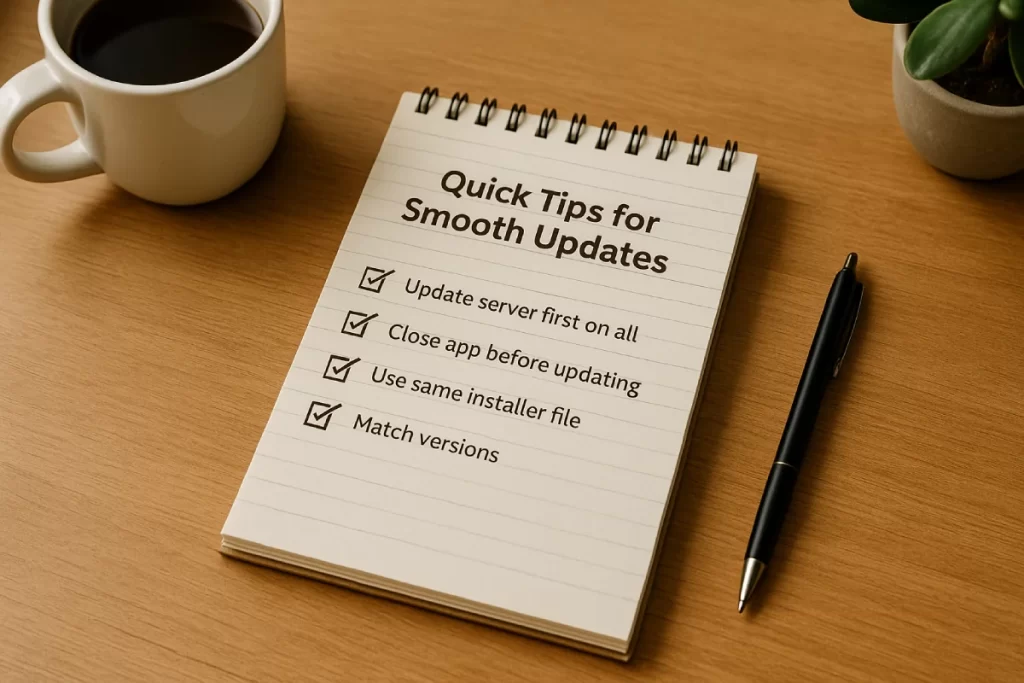
- Always match the server’s version on all devices.
- Close TimeClick before running an update.
- Use the same installer file everywhere.
- On TimeClick 25: update the server first, then clients.
Need more help?

Visit our evergreen updates page for all version and patch history:
Or email support@timeclick.com with your company name and let us know you’re seeing a “version mismatch” error. We’ll walk you through the fix.
If you haven’t tried TimeClick yet, now’s a great time to see how it can simplify tracking time for your business.
Start your FREE TimeClick Trial Today.