
Time Clock Software for Windows That Runs on Your Own PC
TimeClick is time clock software you install on a Windows computer in your office. That computer becomes the server and keeps your time records. Employees clock in at a shared PC, at their own workstation or on the TimeClick phone app. You buy the license once, from $299, with unlimited employees.
No credit card required.
- Runs on your own Windows PC
- Records stay on your computer
- Phone app for staff away from the office
- One-time price from $299
Trusted by 8,000+ businesses, offices and stores









On-premise time clock software: what it means
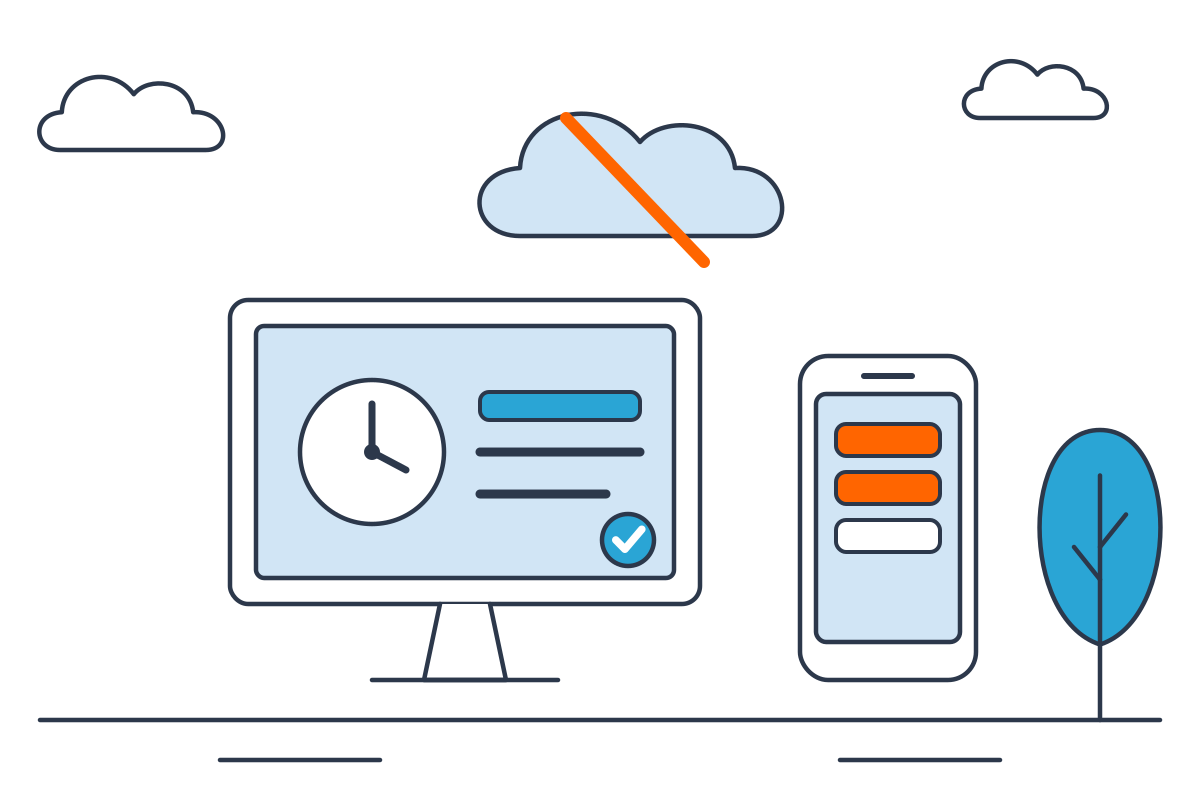
On-premise time clock software is installed on a computer you own. TimeClick installs on your own Windows PC or server, and your time records stay on that computer. Employees can keep clocking in at the office PC even if the internet goes down. Phones sync their punches to your server, and if a phone can’t reach it, the app saves the punches until it reconnects.
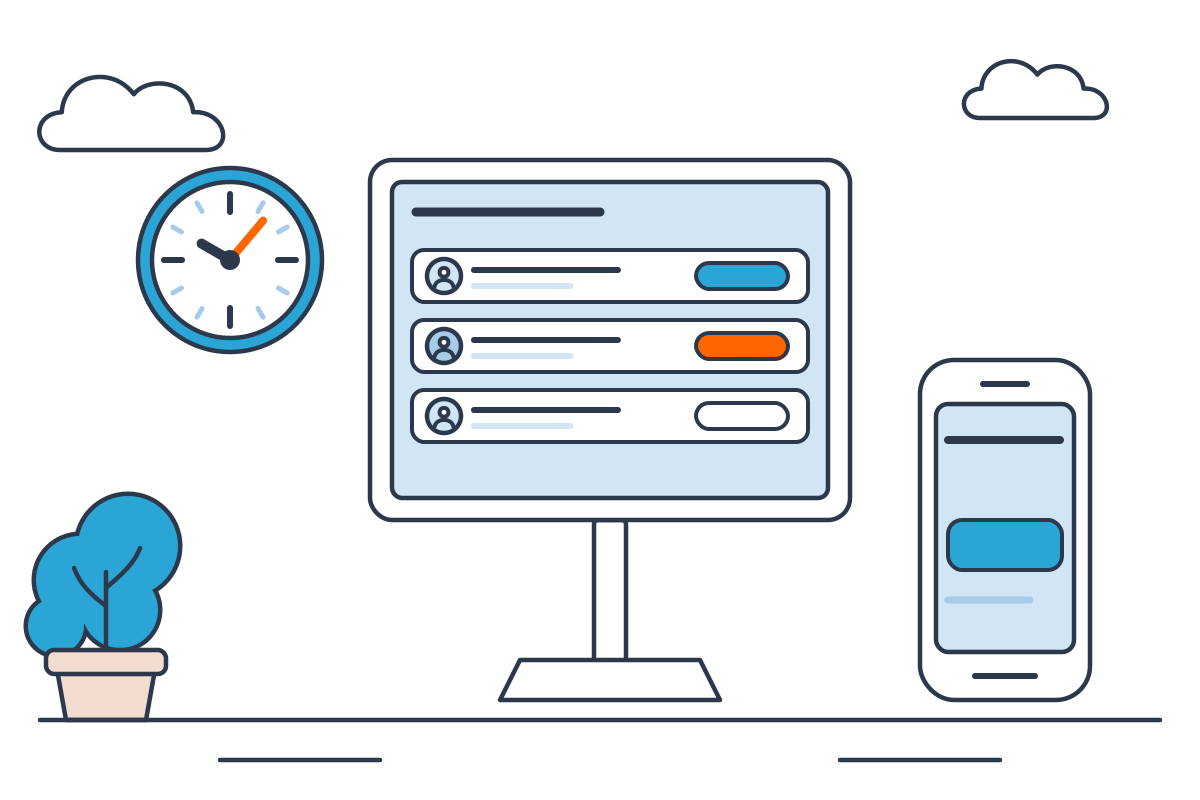
How TimeClick works on a Windows PC
- Server: one Windows PC holds the database with all your company’s time data. Install the TimeClick Server on a computer that stays on during work hours.
- Clients: other Windows PCs on your network run the TimeClick Client. The client connects to the server automatically and shows the same data. Admin tools work from any workstation.
- Phones: the TimeClick app for iPhone and Android connects to the same server.
- Clock-ins: staff punch in at a shared PC with their own employee ID, or from the app on their phone. Every punch lands on the live dashboard, which shows who is on the clock.
| Computer | Runs | Status |
|---|---|---|
| Server PC | TimeClick Server | Database |
| Shared PC | TimeClick Client | Connected |
| Workstation | TimeClick Client | Connected |
| iPhone or Android | TimeClick app | Connected |
Every punch lands on the live dashboard.
What you need to run TimeClick
- A Windows computer to act as the server, running Windows 8 or newer. Windows 10 or newer is recommended.
- At least 1 GB of free disk space and 4 GB of RAM.
- A tablet used as a time clock must run a full version of Windows, and it counts as one device on your license.
Full list: TimeClick system requirements.
| Item | Needs |
|---|---|
| Windows | 8 or newer |
| Recommended | Windows 10 or newer |
| Free disk space | At least 1 GB |
| RAM | At least 4 GB |
| Tablet time clock | Full version of Windows |
A tablet time clock counts as one device on your license.
Clock-ins when the internet is down
The TimeClick server keeps working without internet for desktop clock-ins on your office network. Phones need a connection to send punches to the server. If a phone is offline or the server PC is off, the app saves its punches on the phone until it reconnects with the server.
Saved punches go to the server when the phone reconnects.
Where your time records are kept
Your time records stay on your own computer or server. TimeClick does not store them in a vendor’s cloud, and there are no storage fees. For the trade-offs, see desktop vs cloud time clock software and security risks of mobile time clock apps.
Using a Windows PC or tablet as a shared time clock
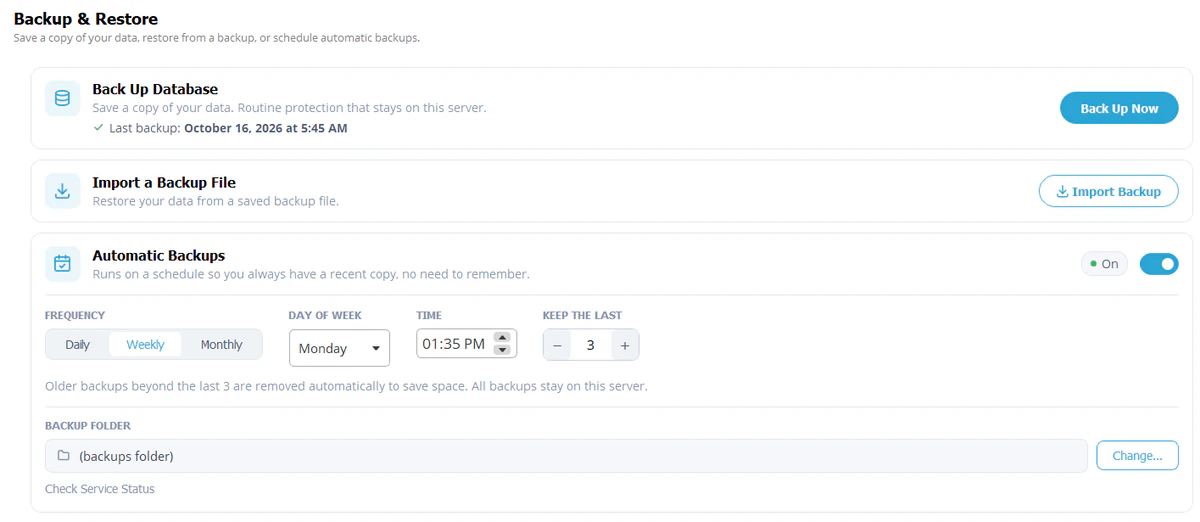
Many offices put TimeClick on one PC near the door and have every employee clock in there with their own ID. A 1-device license at $299 covers that setup for any number of employees.
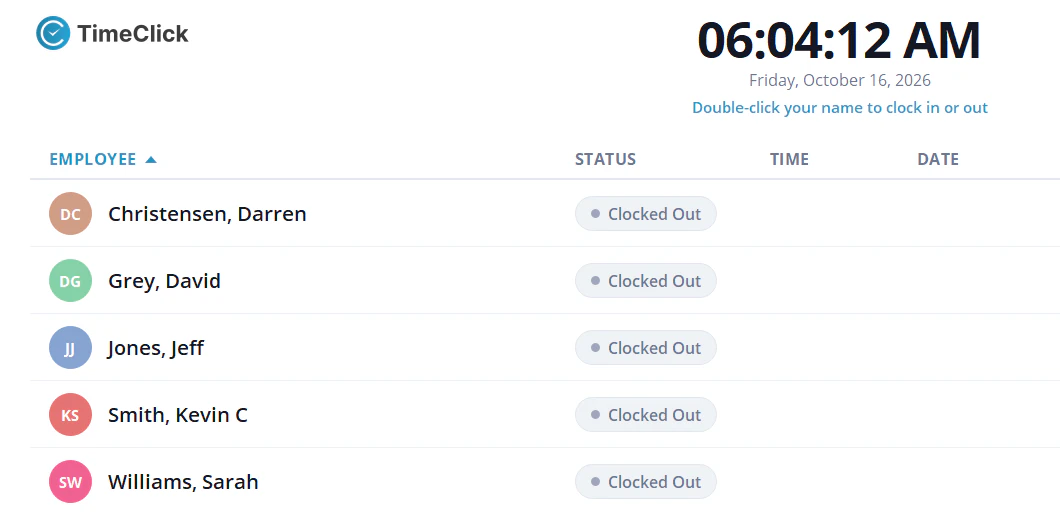
To make a shared PC reliable as a time clock:
- Start TimeClick automatically with Windows: adding programs to the Windows startup menu.
- Lock the PC’s date and time so punches cannot be changed: locking the computer time and date on Windows.
Adding phones for staff away from the office
The TimeClick phone app runs on iPhone and Android. Staff pick a department and job when they punch, and can add a comment. An iPad or Android tablet can also work as a shared kiosk where each employee logs in with their own details.
- The app needs a 2-device license or larger and an active TimeClick Unlimited plan.
- Each phone counts as one device. A 2-device license covers the server PC plus one phone.
- Geofencing checks phone clock-ins against a zone you draw around each worksite. It’s included at no extra cost.
Reports and payroll exports
- Hours Report with every clock-in and clock-out in the date range, with overtime flagged before you export.
- Rounding to 1, 5, 10 or 15 minutes, and automatic lunch deductions applied before the payroll file is made.
- Filters by employee, department or job.
- Exports to PDF, CSV and Excel.
- Payroll export files for QuickBooks Desktop, QuickBooks Online, Gusto, ADP Workforce Now and Passport PBS, with no per-export fee.
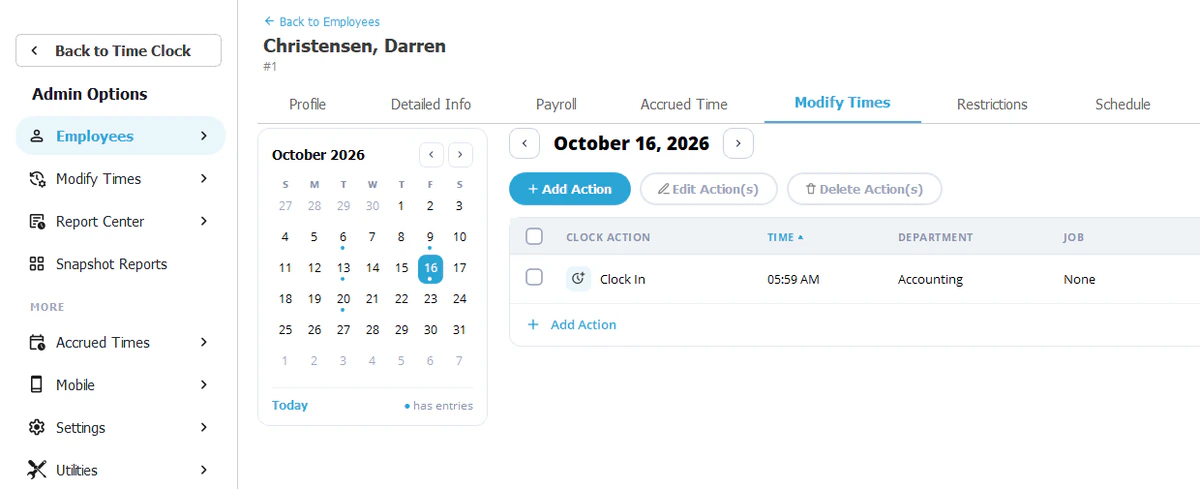
- Admins fix missed punches in the Modify Times screen, and every change is logged with who made it and when.
See TimeClick payroll integrations.
TimeClick license prices
| Devices | One-time price | TimeClick Unlimited renewal after year one |
|---|---|---|
| 1 (desktop only) | $299 | $149 a year |
| 2 | $499 | $199 a year |
| 3 | $599 | $229 a year |
| 5 | $749 | $249 a year |
| 10 | $999 | $299 a year |
| 15 | $1,249 | $349 a year |
| 20 | $1,499 | $379 a year |
| 25 | $1,749 | $399 a year |
| 35 | $1,999 | $449 a year |
| 50 | $2,349 | $499 a year |
Every license includes unlimited employees. The first year of TimeClick Unlimited (new versions, unlimited U.S.-based support and the phone app) is included. Renewal is optional. See the pricing page for the current list.
- Unlimited employees
- New versions
- Unlimited U.S.-based support
- The phone app
From $299 once. The first year is included, and renewal is optional.
Using TimeClick on a Mac
TimeClick runs on Windows only. Mac users can connect to a Windows PC that runs TimeClick, or run Windows on the Mac. See running TimeClick on a Mac for the options.
How to set up TimeClick on Windows
- Start the free trial or go to the download page.
- Run the TimeClick Server installer on the PC that will hold your data. It takes about 40 seconds.
- Add your employees and departments, or import your employee list.
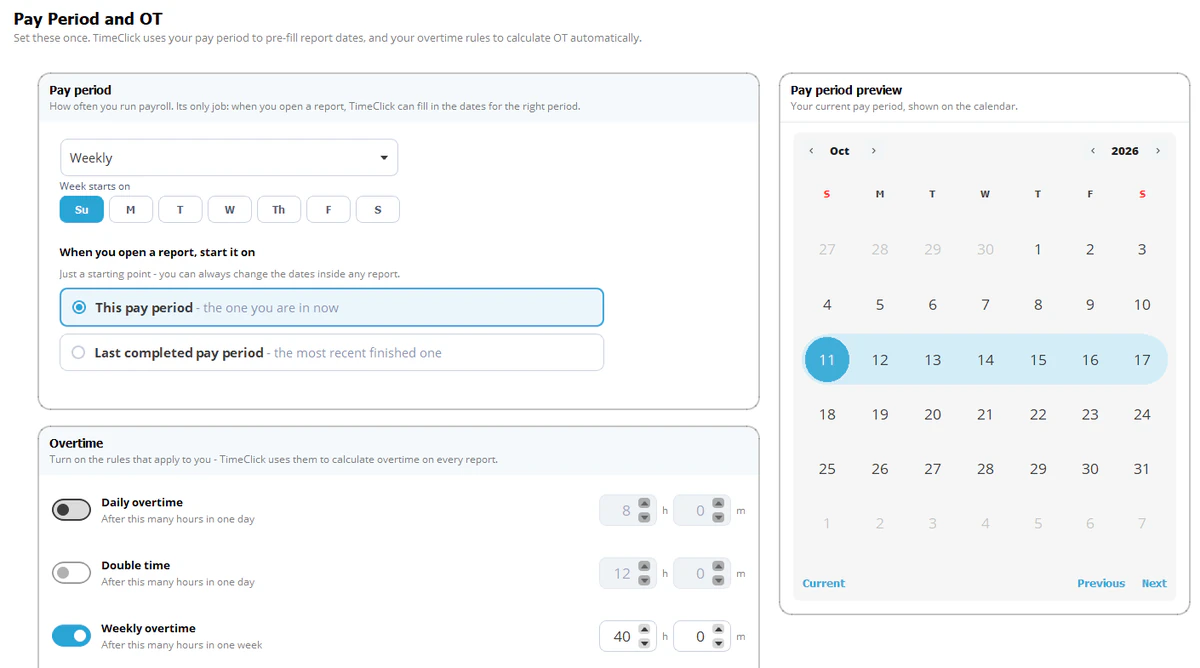
- Set your pay period, overtime rules, rounding and lunch deductions.
- Run the TimeClick Client installer on each other PC that will be used for clock-ins. See moving TimeClick to a new workstation.
- Set up phones if staff clock in away from the office.
Setup takes 10 minutes or less. During the 14-day trial, TimeClick’s U.S.-based support team helps with setup by phone or chat at no charge, Monday to Friday, 7am to 4pm Mountain Time. Chats are answered within 10 seconds and calls within 30 seconds.
Windows time clock software FAQ
Does TimeClick need the internet?
Not for clock-ins on the office PC. If a phone can’t reach your TimeClick server, the app saves its punches until it reconnects with the server.
Which Windows versions does TimeClick support?
Windows 8 and newer. Windows 10 or newer is recommended, with at least 1 GB of free disk space and 4 GB of RAM.
Can I use one PC as the time clock for all employees?
Yes. A 1-device license covers one PC and any number of employees. The phone app needs a 2-device license or larger.
Where is my data stored?
On your own computer or server.
Is there a monthly fee?
No. The license is a one-time purchase. TimeClick Unlimited (support, new versions and the phone app) is included for the first year and then renews once a year, from $149 for a 1-device license. Renewal is optional.
Does TimeClick work on a Mac?
Not natively. See running TimeClick on a Mac.
How do I move TimeClick to a new PC?
Follow moving the TimeClick server for the server PC, or moving TimeClick to a new workstation for other PCs.
Try TimeClick on your Windows PC free for 14 days
Employees clock in on a shared PC or the phone app, and TimeClick totals their hours, overtime and time off for payroll, with a one-time license from $299 and unlimited employees.